The Math of Being Slow
Most people are broke because they are slow.
They think they are working hard. They aren’t. They are working with friction.
If you work from a laptop, you have a ceiling on your output. It is physical. It is real. And it is costing you thousands of dollars a year.
I see digital nomads and “entrepreneurs” sitting in cafes. They are hunched over a single 13-inch MacBook Air. They look busy. They are switching tabs every 4 seconds. They are trying to reference a spreadsheet while writing an email while checking Slack.
This is stupid.
Every time you hit Alt-Tab, your brain resets. It takes time to refocus. Micro-seconds add up to minutes. Minutes add up to hours.
When I travel, I don’t lower my standards. I don’t accept 50% output just because I am not at my home desk. I replicate my environment. I remove the friction.
You need a second screen. You need it to be light. And you need to set it up in under 30 seconds. If it takes longer than that, you won’t use it.
Here is why you are losing money without one.
The ROI of a $150 Monitor
Let’s look at the numbers. I love numbers because they don’t lie. Feelings lie. Numbers tell you if you are winning or losing.
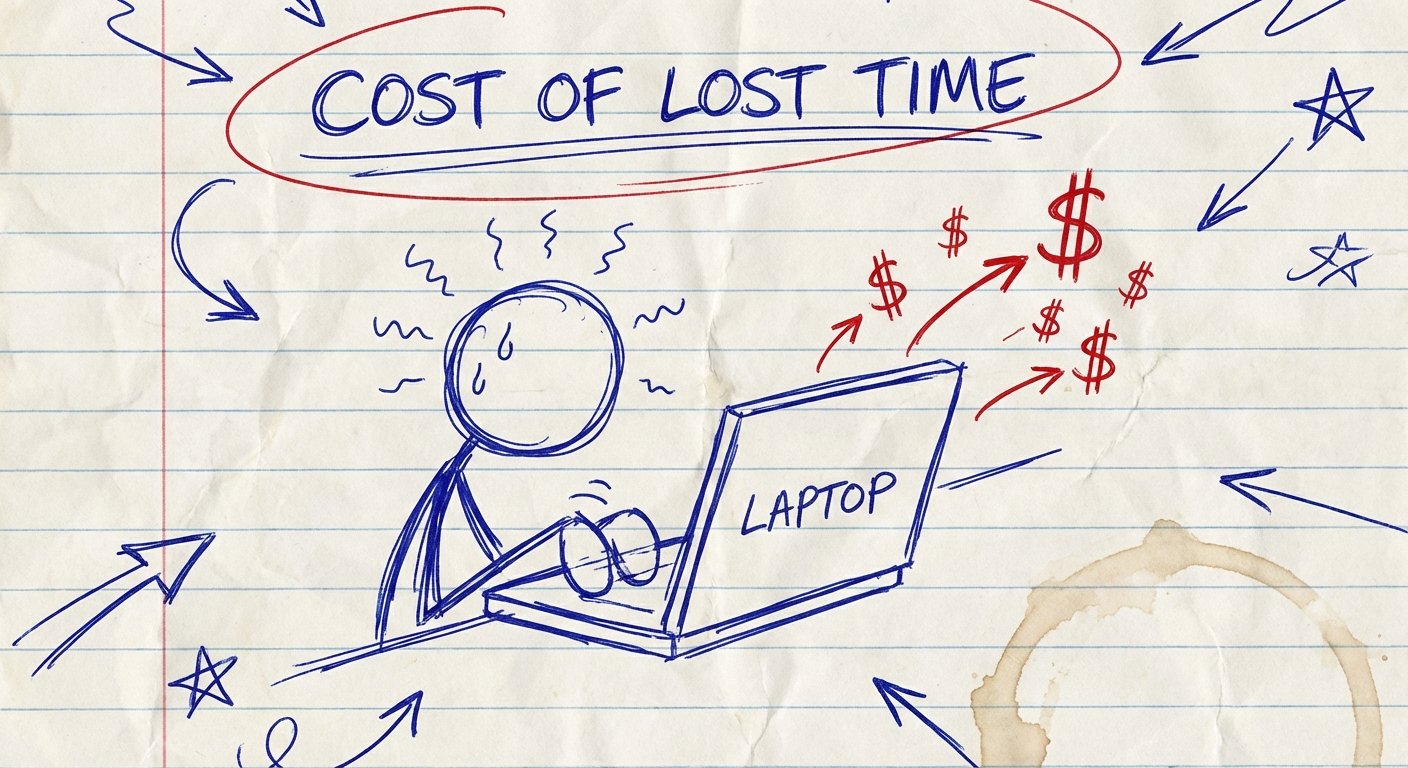
Studies consistently show that dual monitors increase productivity by 20% to 30%. Let’s be conservative. Let’s say it only makes you 10% faster.
If your time is worth $50 an hour:
- You work 8 hours a day.
- That is $400 of value generated.
- 10% drag on your speed costs you $40 a day.
$40 a day.
A decent portable monitor costs about $150. That means in four days, the monitor has paid for itself. Every day after that is pure profit. It is free money.
If you don’t buy one, you are effectively paying $40 a day for the privilege of being slow. That is a bad trade. I don’t make bad trades.
But most people buy the wrong stuff. They buy heavy screens. They buy screens that need power bricks. They buy screens with terrible resolution that hurts their eyes.
Don’t be most people. Here is the gear that actually works.
Category 1: The “Value King” (Start Here)
You do not need to spend $500 to get this result. Technology has become a commodity. Screens are cheap now.
If you just need more space for spreadsheets, Slack, or reference material, get a basic IPS panel. Do not overthink this.
The Product: ARZOPA S1 Table Portable Monitor 15.6″
This is the Toyota Camry of portable screens. It works. It runs off a single cable. It fits in your backpack.
The Specs:
- 15.6 Inch 1080P FHD
- USB-C (Power and Signal in one cable)
- Weight: ~1.7 lbs
- Kickstand built-in (on newer models) or magnetic cover
The Win:
It is ridiculously cheap for the value it provides. You plug it into your USB-C laptop port, and it turns on. No drivers. No power outlet hunting. It is light enough that you forget it is in your bag.
The Trade-off:
The brightness is average (usually around 300 nits). If you are working outside in direct sunlight, you will struggle to see it. The build quality feels like plastic because it is plastic. It is not an Apple Retina display. It is a tool.
Estimated Price: $90 – $130

Category 2: The “Pixel Perfect” (For Creators)
If you edit video, design graphics, or your eyes simply refuse to look at bad pixels, you need to pay more. You are paying for color accuracy and brightness.
If your main laptop is a MacBook Pro with a glorious XDR display, putting a cheap $100 monitor next to it looks jarring. The colors won’t match. The black levels will look grey.
If you make money with your eyes, buy this.
The Product: ASUS ZenScreen OLED (MQ13AH or MQ16AH)
This is an OLED panel. The blacks are true black. The colors pop. It is thinner than your phone.
The Specs:
- 13.3 or 15.6 Inch OLED 1080P
- 100% DCI-P3 Color Gamut
- Weight: ~1.08 lbs (super light)
- Proximity sensor saves power
The Win:
Visual fidelity. It looks professional. It weighs almost nothing. The contrast ratio is 100,000:1. If you are showing a presentation to a client across a table, this signals competence. The cheap plastic ones signal “budget.”
The Trade-off:
The price. You are paying 3x the price of the commodity screens. Also, OLED screens can suffer from burn-in if you leave static images on them for 12 hours a day every day for years. But for travel? It’s fine.
Estimated Price: $280 – $400
Category 3: The “Zero Footprint” (Attached Screens)
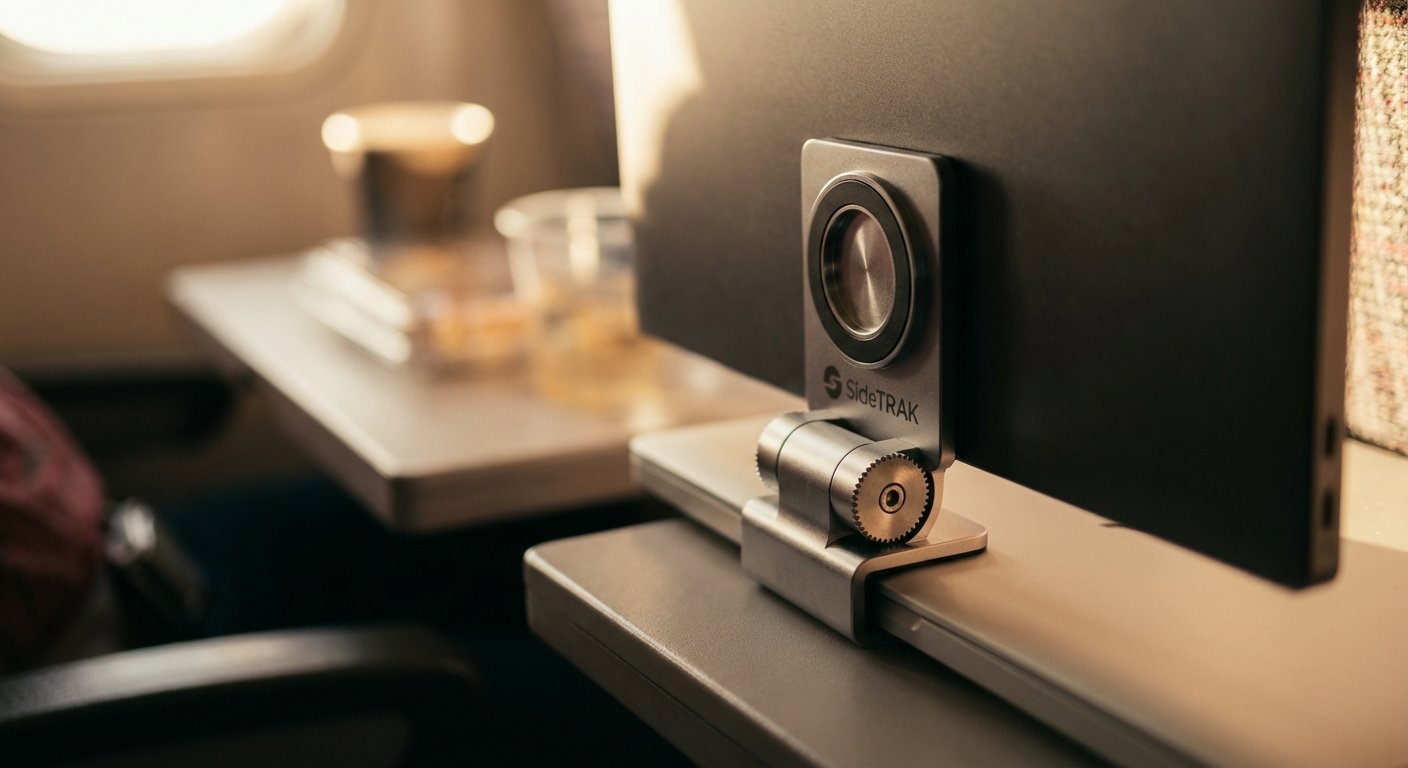
Maybe you don’t have table space. Maybe you work on airplanes, trains, or tiny coffee shop tables where a kickstand monitor won’t fit.
There is a class of monitors that magnets onto the back of your laptop lid and slides out. This creates a “command center” feeling.
The Product: SideTrak Swivel or Xebec Tri-Screen
These units physically attach to your laptop. You open your laptop, slide the screen out, and you are done. 10 seconds.
The Specs:
- Attaches via magnets or tension frame
- No desk footprint required
- Usually 12 to 14 inches
The Win:
You can use this on your lap. You can use this in an economy seat on a Delta flight. It is the ultimate “work anywhere” setup because it requires zero extra surface area.
The Trade-off:
Physics. Hanging a weight off your laptop screen hinge is risky. It can cause the screen to flop backward if your hinges are weak. It also adds bulk to your laptop when you slide it into your bag. It drains your laptop battery faster because it pulls power directly to keep the heavy unit running.
Estimated Price: $250 – $450
The Invisible Hardware: Cables and Stands
A monitor is useless if it hurts your neck. Looking down at a table for 8 hours is how you get herniated discs. Herniated discs require surgery. Surgery costs time and money.
Lift your screens up.
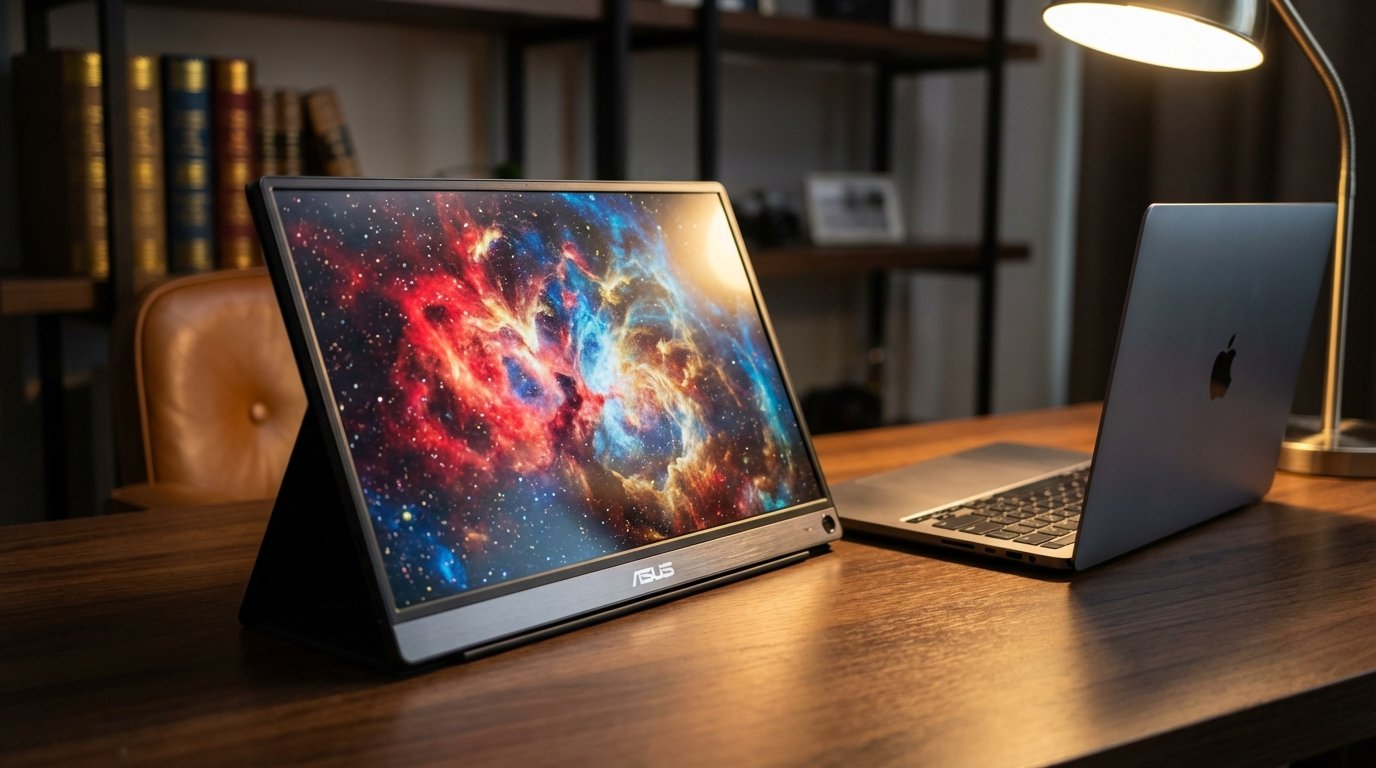
You need a stand that folds into nothing but holds your laptop at eye level. Then, you put the portable monitor next to it on its own kickstand.
The Stand: The Roost V3 (or Nexstand for budget)
I have used the Roost for years. It is expensive for a piece of plastic. But it is indestructible. It weighs 6 ounces. It folds into a stick.
The Win:
Ergonomics. It aligns your spine. It allows you to work for 4 hours without fatigue. Fatigue kills ROI.
The Trade-off:
You need an external keyboard and mouse to use this effectively. You cannot type on your laptop when it is 10 inches in the air.
Estimated Price: $80 – $90
The Cable: 100W USB-C 3.1 Gen 2
Listen to me closely. Not all USB-C cables are the same.
Most cables are for charging only. If you use your phone charging cable to plug in your monitor, it will not work. You will get a black screen. You will be frustrated. You will waste time.
You need a cable that supports Video Data Transfer (DisplayPort Alt Mode). Usually, the monitor comes with one. But it is usually short and stiff.
Buy a high-quality, braided, 10Gbps data cable. Buy two. Cables break. Always have a backup. Redundancy is reliability.
The 30-Second Setup Protocol
Buying the gear is easy. Using it efficiently is the skill.
If you have to dig through a tangled mess of wires at the bottom of your backpack, you have already lost. You need a system.
Here is exactly how I set up my dual-screen office in under 30 seconds.
1. The “First Out” Rule
Pack your bag in reverse order of use. The things you need first should be at the top.
Your laptop and your portable monitor should live in the same sleeve or adjacent slots. When you sit down, you pull them both out in one motion.
2. The One-Cable Solution
Do not use HDMI if you can avoid it. HDMI requires a separate power cable for most portable monitors. That is two cables. Two cables means twice the tangle potential.
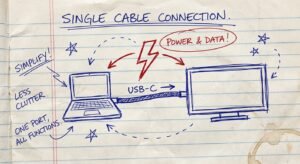
Use USB-C to USB-C. It carries power from your laptop to the screen AND sends the video signal. One cable. Click. Done.
3. The Orientation
Set your laptop on the table. Place the portable monitor to the right.
Why the right? Because most mouse users are right-handed. It feels natural to move the mouse off the edge of the screen into the second screen.
If you are using the Roost stand, put the laptop on the stand. Put the portable monitor on the table in “Portrait” (vertical) mode next to it.
Vertical Mode is a Cheat Code.
Most web pages, documents, and code are vertical. They are long. A horizontal screen wastes space on the sides. A vertical screen lets you see the whole document at once. Use your main screen for work, use the vertical screen for reference.
The Trade-Off: Battery Life
I promised brutal honesty.
When you plug a second screen into your laptop, you are powering a second screen. Your laptop battery will die twice as fast.
If you usually get 8 hours, you will get 4 hours.
The Fix:
You have two options.
- Plug in your laptop: If you are near an outlet, this is a non-issue.
- Carry a Power Bank: Do not buy a cheap phone charger. You need a Power Delivery (PD) bank that pushes at least 65 Watts. An Anker 737 or similar. It costs money. But it buys you time. Time is money.
Conclusion: Stop Making Excuses
People love to romanticize the “laptop lifestyle.” They post pictures of their feet on the beach with a laptop.
You cannot work on a beach. There is glare. There is sand. It is uncomfortable.
If you want to build a business, you need a workspace. You need command over your information.
For an investment of roughly $150 to $300, you double your visual real estate. You remove the friction of switching tasks. You look more professional.
The ROI is infinite because the equipment lasts for years, but the productivity gain hits you on Day 1.
Stop squinting at a single 13-inch screen. Stop Alt-Tabbing your life away.
Get the gear. Set it up. Do the work.