
Portable Monitor Not Working? 5 Common Issues and How to Fix Them Instantly
You bought a portable monitor to double your output. You wanted efficiency. You wanted speed. You wanted to work from a hotel room like you do from your command center.
But right now? You have a blank screen. A flickering light. And a headache.
You aren’t making money. You’re troubleshooting.
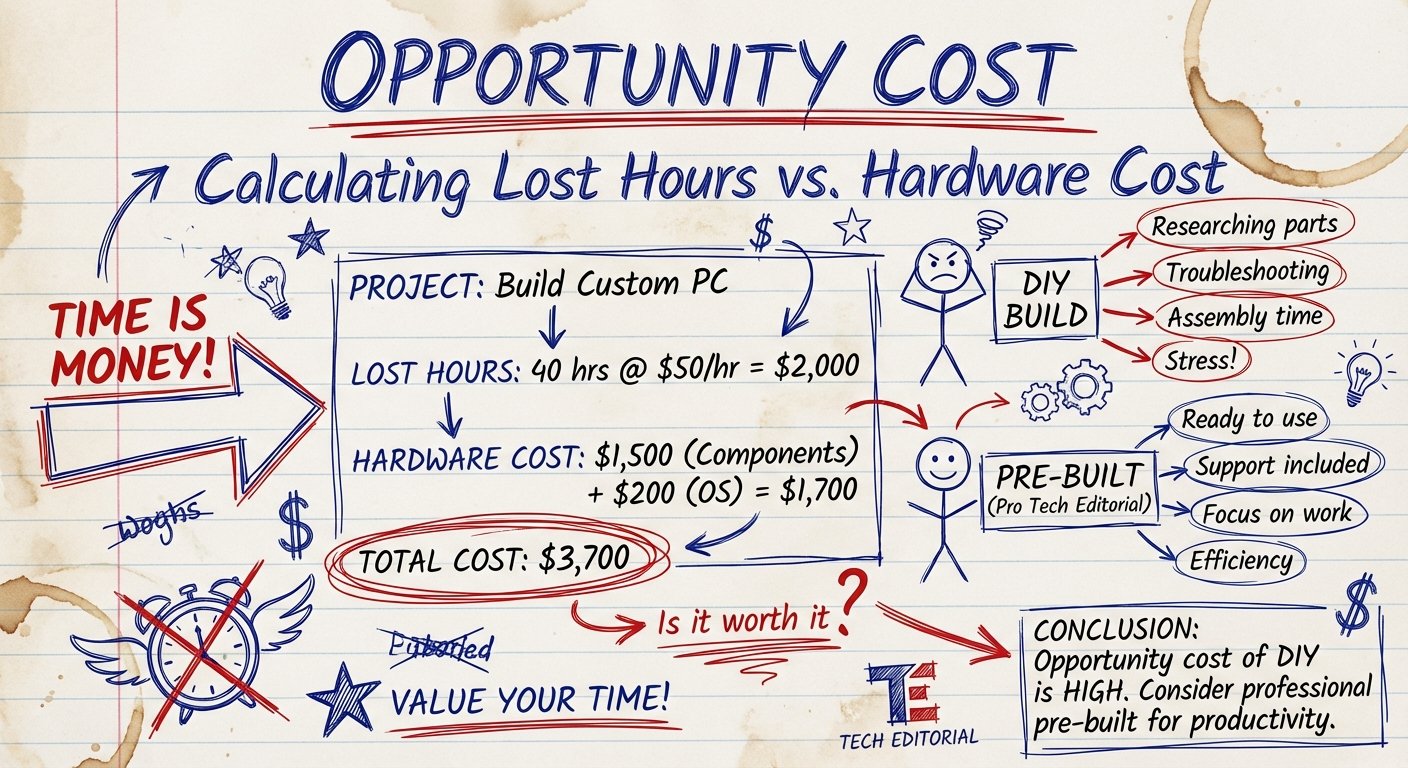
Every minute you spend fiddling with a cable is a minute you aren’t closing deals, writing copy, or managing your team. If your hourly rate is $100, and you spend two hours fixing a $150 monitor, you just lost money on the purchase.
This is the opportunity cost of bad gear and lack of knowledge.
Stop guessing. Stop jiggling the cord hoping for magic. Hardware follows laws. It either works, or you broke a rule.
Here is the logic. Here is the math. Here is how you fix it fast so you can get back to printing money.
The Math of the Dual Screen
Why do we even care? Why not just use the laptop screen?
Because data shows dual monitors increase productivity by 42%. That is almost half a person worth of extra work. For free. Just by adding pixels.
If you make $100,000 a year, a 42% increase in efficiency is worth $42,000 in time saved or extra output generated.
Spending $200 to make $42,000 is an infinite return on investment. It is a no-brainer. But only if the screen actually turns on.
Here are the 5 reasons yours isn’t working, and the brute-force fixes for them.
Issue #1: The Power “Lie” (Insufficient Voltage)
This is the number one reason your screen is black. It is physics.
Your laptop USB-C port promises to deliver power and data. Marketing materials say “One Cable Solution.”
They are lying.
Or rather, they are stretching the truth. Your laptop’s battery is trying to run its own CPU, GPU, screen, and Wi-Fi. Then you plug in a portable monitor that demands 5V to 15V of constant juice. Your laptop chokes. It cuts power to the external port to save itself.
The Symptoms:
- The monitor logo flashes, then goes black.
- The screen flickers when you turn brightness up past 30%.
- Your laptop makes the “device connected” sound, then the “device disconnected” sound immediately.
The Fix: Use External Power.
Do not rely on the laptop battery. Most portable monitors have two USB-C ports. One is for video. One is for power.
Plug a phone charger or a dedicated power brick into the monitor’s power port first. Then connect the video cable to the laptop. This feeds the monitor directly from the wall. It stops being a parasite on your laptop.
Issue #2: The Cable Scam
Not all USB-C cables are created equal. This is where people get cheap, and it costs them.
You see a USB-C cable in your drawer. It fits the hole. You plug it in. Nothing happens.
Why?
Because that cable is likely a “Charge Only” cable that came with your headphones or vape pen. It has wires for electricity, but it literally lacks the physical wires inside to transmit video data. It is a hollow tube for power.
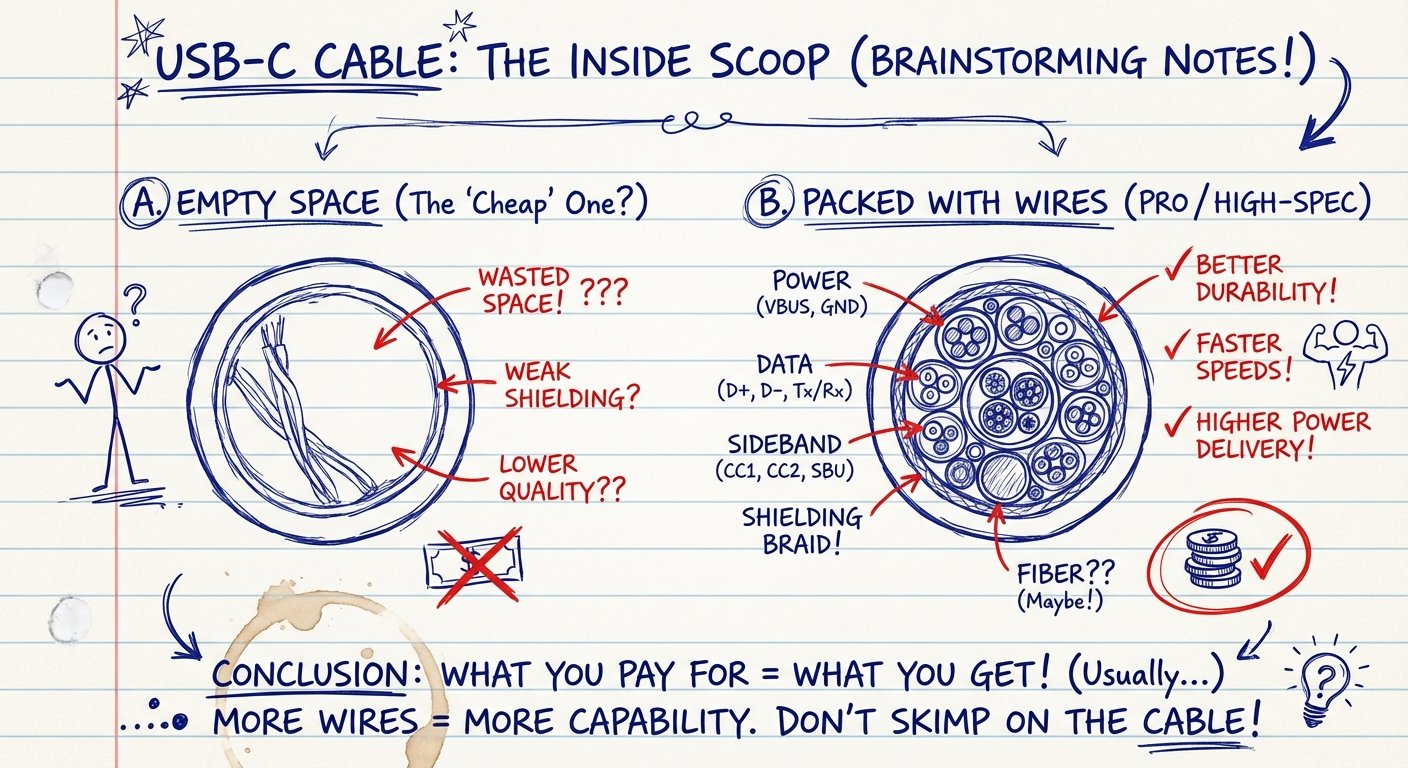
The Fix: Get a Thunderbolt 3/4 or USB 3.1 Gen 2 Cable.
You need a cable rated for Data Transfer (10Gbps or higher) and Video Output (4K support). If the cable cost you $3 at a gas station, it won’t work. If the cable is thin and flimsy, it won’t work.
Throw away the bad cables. They are liabilities disguised as assets.
Issue #3: The “Ghost” Input
Monitors are dumb. They do not know what you want. They just listen for a signal.
If you have the cable plugged into the Mini-HDMI port, but the monitor is listening to the USB-C port, you get a black screen. It is listening to silence.
The Fix: Force the Menu.
1. Press the OSD (On-Screen Display) toggle or lever on the side of the monitor.
2. Navigate to “Input Source.”
3. Manually select HDMI or Type-C, depending on what you used.
Sometimes “Auto-Detect” fails. Do not trust “Auto.” Trust manual selection.
Issue #4: The Resolution Mismatch
Sometimes the screen is on, but it says “Out of Range” or “No Signal.”
This means your laptop is screaming instructions the monitor cannot understand. You are trying to push a 4K signal into a 1080p monitor. Or you are trying to push a 144Hz refresh rate into a 60Hz screen.
The Fix: Reset Display Settings.
Windows: Right-click Desktop > Display Settings. Select the external monitor. Set Resolution to “Recommended” (usually 1920×1080). Set Refresh Rate to 60Hz.
Mac: System Settings > Displays. Click the external display. Hold the ‘Option’ key and click ‘Scaled’ to see more resolutions. Pick 1080p / 60Hz.

Issue #5: You Bought a Brick (Hardware Failure)
If you have:
- Supplied external power from the wall.
- Used a high-speed data cable.
- Checked your inputs.
And it still doesn’t work?
You bought junk. The soldering inside cheap electronics is brittle. One drop in your backpack, one rough TSA agent, and the connection snaps. It is dead. It is not coming back.
Stop trying to fix it. Your time is worth more than the $90 you spent on it.
Throw it out. Buy something reliable. Write it off as a business expense. Move on.
The Solution: Buy Gear That Actually Works
If your monitor is dead, or if you are tired of struggling with dim, flickering screens, you need to upgrade.
I don’t care what brand you buy. I care that it works so you can work.
Here are the monitors that provide the best ROI based on current specs, brightness, and durability. I have looked at the data. These are the winners.
1. The “Pro” Choice: ASUS ZenScreen OLED (MQ13AH)
If you do creative work, design, or just hate looking at washed-out grey text, this is the one. It uses OLED technology. The blacks are black. The colors pop. It costs more, but it reduces eye strain and makes your work look expensive.
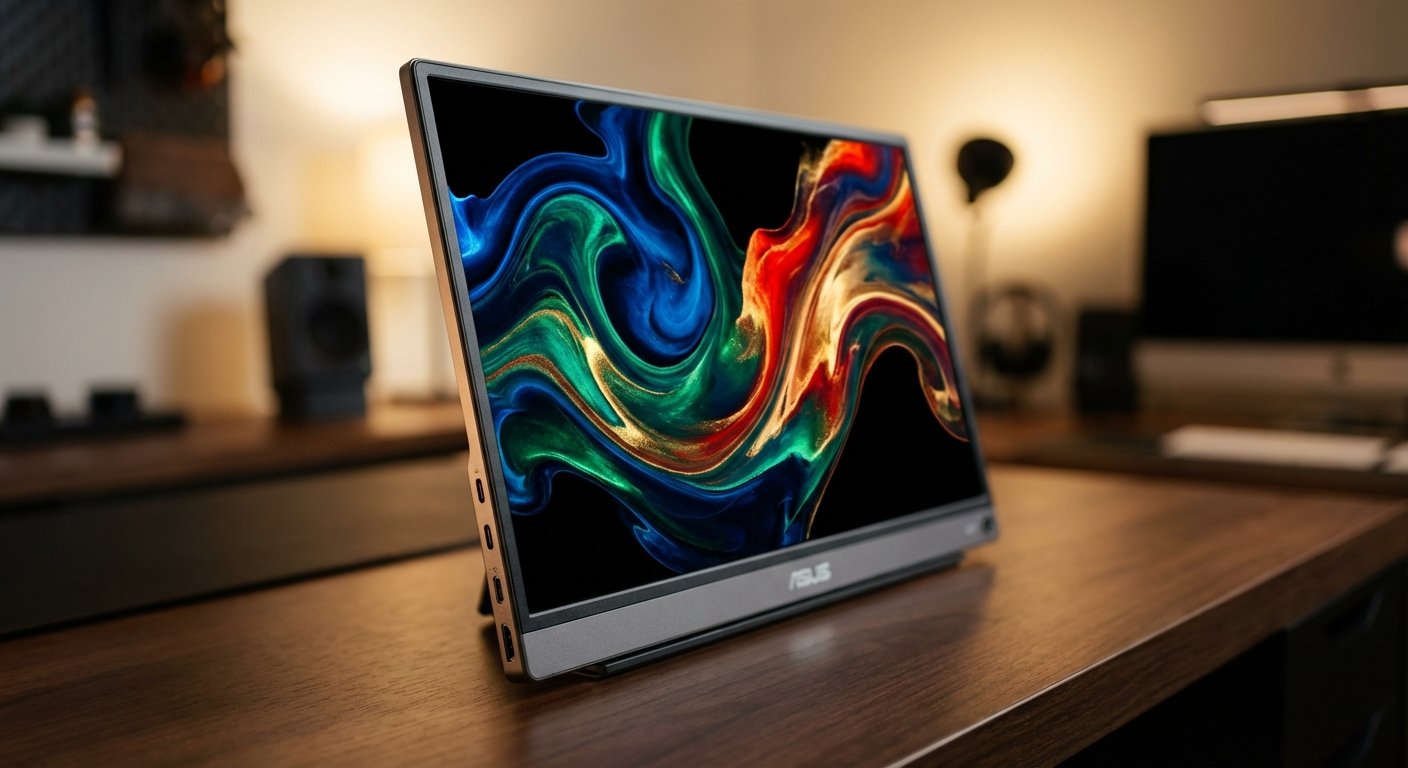
The Win: OLED panel means perfect contrast. 100% DCI-P3 color gamut. Very thin. It looks professional in a client meeting.
The Trade-off: It is pricey. You are paying for the screen quality, not extra features. It is smaller (13.3 inches), which is great for travel but less total screen real estate.
Price: $280 – $350
2. The “Volume” Choice: ARZOPA Portable Monitor (A1 Gamut)
This is for the guy who just needs spreadsheets and email. It isn’t fancy. It feels a bit plasticky. But it is cheap, it is light, and it works. It is the Honda Civic of portable screens.
The Win: Incredible value. 144Hz refresh rate means scrolling is buttery smooth. 15.6 inches gives you plenty of room for side-by-side windows.
The Trade-off: Brightness is average (300 nits). Do not try to use this outside in the sun. You won’t see anything. The build quality feels cheap because it is.
Price: $110 – $140
3. The “Productivity Beast” Choice: LG Gram +view (16MR70)
Screen shape matters. Most screens are 16:9 (wide and short). This LG is 16:10 (taller). Why does that matter? Because code, documents, and websites are vertical. A taller screen lets you see more work without scrolling.
The Win: 16-inch IPS display with 2560×1600 resolution. It is sharper than the others. Extremely lightweight (under 1.5 lbs). Matches perfectly with high-end laptops.
The Trade-off: It uses USB-C only. No HDMI. If you have an old laptop, you can’t use this. It forces you to be modern.
Price: $250 – $300
Final Thoughts: Return on Investment
Do not tolerate broken tools.
If a carpenter has a hammer that loses its head every 10 swings, he doesn’t glue it back on every morning. He buys a new hammer.
Your laptop and your monitor are your hammer. You build your wealth with them.
If the fixes above—power, cable, settings—did not work instantly, stop wasting your life. The $200 you spend on a new monitor today will be paid back in less than a week of increased productivity.
Fix it. Buy the right gear. Get back to work.