You Are Losing Money Every Time You Blink
You bought a MacBook Air because it is light. It is fast. It is efficient.
But if you are using it by itself to run a business, you are slow.
Here is the reality of screen real estate: It is leverage.
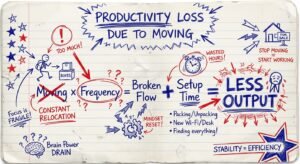
Every time you have to Alt-Tab to switch between a spreadsheet and an email, you lose 0.5 seconds. You lose focus. You lose flow.
Do that 200 times a day. That is 100 seconds. Sounds small?
Now add the “re-focus” time. It takes your brain 15 seconds to get back into deep work after a micro-interruption. That is 50 minutes a day wasted on window management.
The Math:
- 50 minutes a day = ~4 hours a week.
- 4 hours a week = ~200 hours a year.
- If your time is worth $50/hour, you are lighting $10,000 on fire every year because you are too cheap to buy a second screen.
You don’t need motivation. You need a portable monitor.
But most portable monitors are trash. They are dim, plastic junk with washed-out colors that make your Retina display look bad by comparison.
I don’t deal with trash. I deal with ROI.
Here is the no-nonsense guide to portable monitors that actually keep up with your MacBook Air.

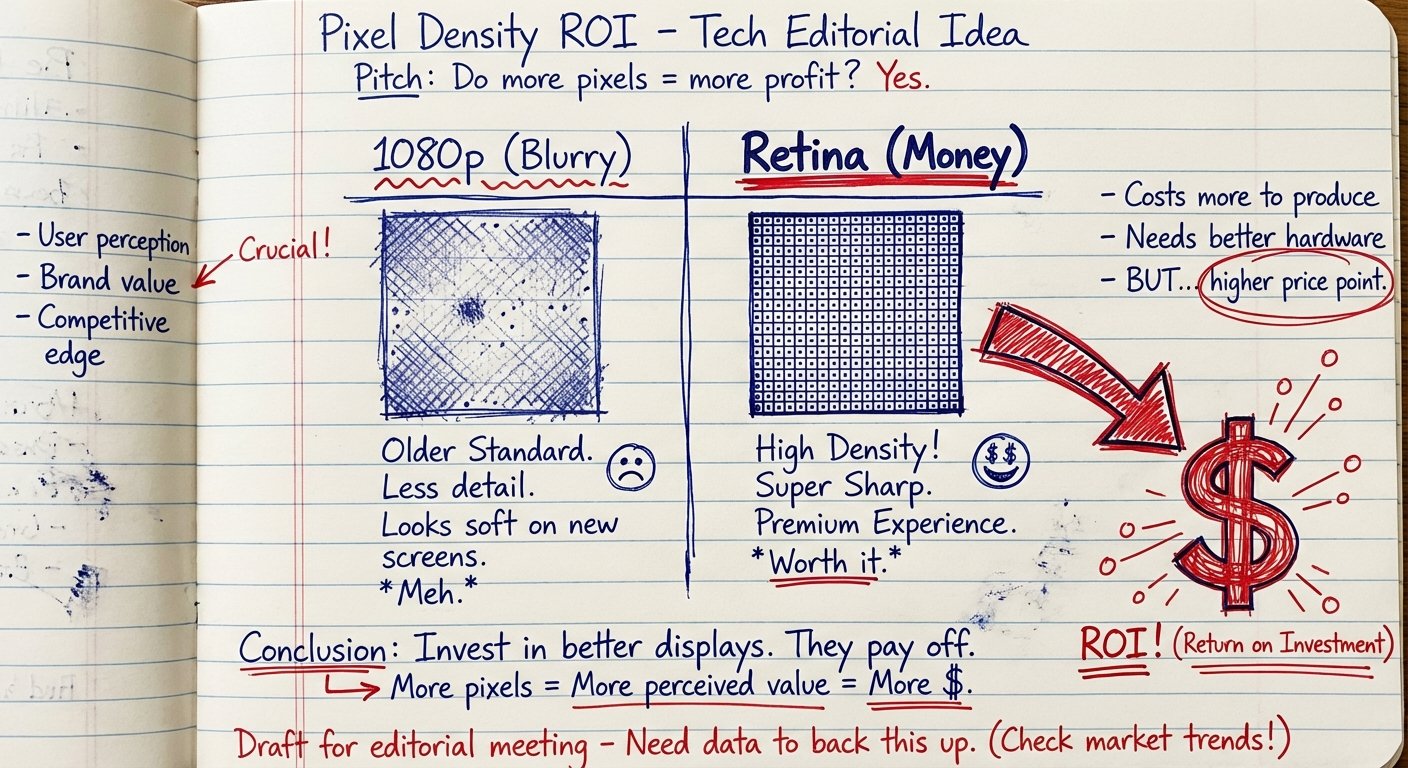
The “Retina” Problem (Why 1080p is a Trap)
Apple spoiled you.
Your MacBook Air has a pixel density of roughly 227 PPI (Pixels Per Inch). Text is sharp. Images are crisp.
Most portable monitors on Amazon are 1080p (1920 x 1080). On a 15-inch screen, that is about 141 PPI.
When you drag a window from your Mac to a cheap 1080p monitor, the text looks fuzzy. It looks pixelated. It looks like 2012.
Your brain notices this difference. It causes eye strain. It makes you hate using the second screen. If you hate using it, you won’t use it. If you don’t use it, you wasted your money.
The Criteria for High ROI:
- Resolution: Must be 2K (2560×1600) or 4K. No 1080p unless you are broke.
- Aspect Ratio: 16:10 is preferred (fills the Mac screen shape). 16:9 leaves black bars or wastes vertical space.
- Brightness: 400 nits minimum. You work in coffee shops. Coffee shops have windows. Dim screens are useless.
- Connectivity: Single USB-C cable for power and video. No power bricks.
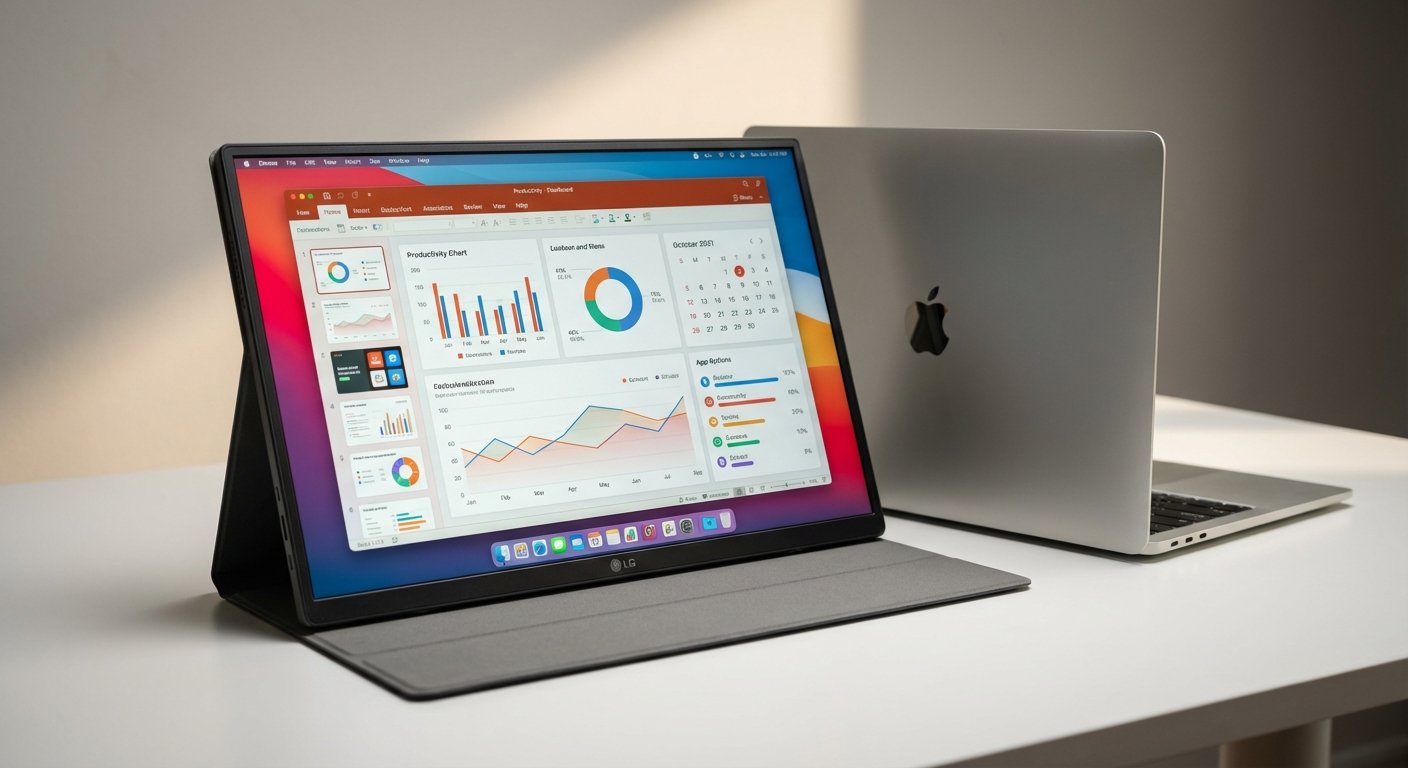
Top Recommendation: LG Gram +view 16MR70
This is the logical choice. LG manufactures the panels for half the high-end laptops in the world. They decided to just sell the screen without the laptop attached.
It is designed specifically to sit next to a 16:10 laptop. It matches the aesthetic. It matches the height.
The Specs
- Resolution: 2560 x 1600 (WQXGA)
- Size: 16-inch
- Panel: IPS (Anti-glare)
- Weight: 1.45 lbs (Light)
The Win
It is seamless. The 2560 x 1600 resolution means you don’t have to mess with scaling settings. You plug it in, and it looks like an extension of your MacBook. The colors cover 99% of the DCI-P3 gamut. That means red looks red, not washed-out orange.
The Trade-off
It has no battery. It draws power from your MacBook. This drains your laptop battery faster (roughly 30-40% faster). If you aren’t plugged into a wall, your runtime drops. Also, the included cover/stand is fiddly. It works, but it feels like origami.
Estimated Price: $200 – $300
The Budget Beast: UPERFECT 2K 120Hz (16-inch)
UPERFECT is a generic brand. They buy panels from the big guys and put them in cheaper plastic housings. This is arbitrage.
You get high specs for a low price because you aren’t paying for a logo or a marketing department. You are paying for pixels.
The Specs
- Resolution: 2560 x 1600 (2K)
- Refresh Rate: 120Hz (Smoother than the LG)
- Size: 16-inch
- Connectivity: USB-C & Mini HDMI
The Win
The 120Hz refresh rate. Your MacBook Air screen is 60Hz. This monitor is actually smoother than your laptop screen. Scrolling through code or huge data sets feels fluid. It is incredibly bright (500 nits claimed, usually tests around 450). This is the best “bang for your buck” on the market.
The Trade-off
Build quality. It feels plastic. The buttons on the side click loudly and feel cheap. The menu system (OSD) is ugly and hard to navigate. But once you set it up, you don’t touch it. You just work.
Estimated Price: $160 – $210
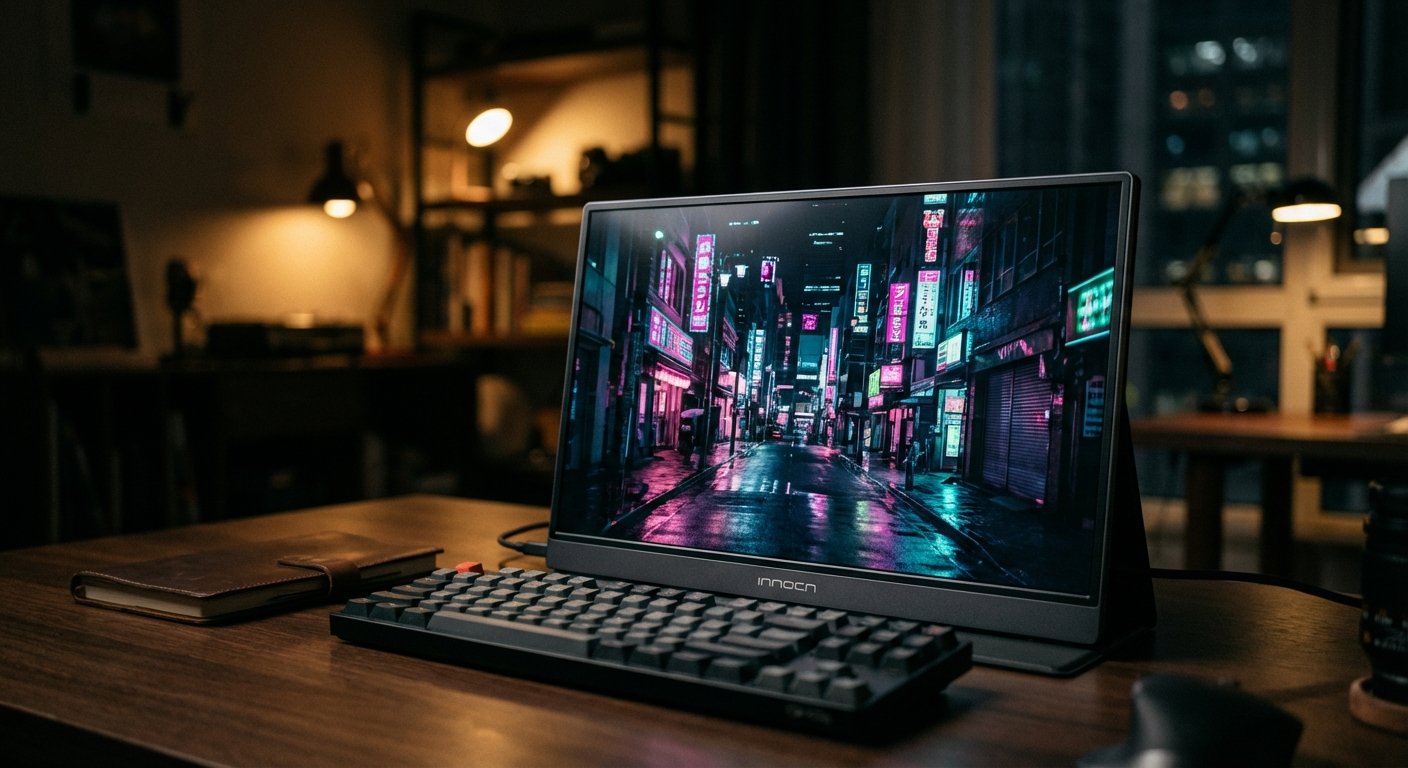
The Visual Perfectionist: INNOCN 15A1F OLED
If you are a designer, video editor, or you just like nice things, IPS panels aren’t enough. You want OLED.
OLED means “Organic Light Emitting Diode.” It means true black. When a pixel is black, it is off. Infinite contrast.
The Specs
- Resolution: 1920 x 1080 (See note below)
- Panel Type: OLED
- Color: 100% DCI-P3
- Weight: 1.6 lbs
The Win
The picture quality destroys everything else on this list. The colors are vibrant and accurate. If you are showing a presentation to a client on this screen, they will perceive high value. It looks premium.
The Trade-off
Two issues. First, it is 1080p. However, because it is OLED and the pixel structure is different, it looks sharper than standard LCD 1080p screens—but it is still not “Retina” sharp for small text. Second, OLED screens are glossy. If you work outside or under bright fluorescent lights, the reflection will annoy you.
Estimated Price: $200 – $350
The Professional Tool: ASUS ProArt PA148CTV
This isn’t for people who just want to watch YouTube while they work. This is for professionals who bill by the hour.
ASUS ProArt is the industry standard for color accuracy on a budget. This unit comes calibrated from the factory. You can trust it.
The Specs
- Resolution: 1920 x 1080 (Optimized)
- Features: Touch screen, ASUS Dial (for Adobe apps)
- Connectivity: Micro HDMI, Dual USB-C
- Mounting: Tripod socket on the back
The Win
The “ASUS Dial” on the back lets you control Photoshop brushes or Premiere timelines physically. It has a tripod mount, meaning you can mount it next to a camera as a field monitor. It is built like a tank. It is a tool, not a toy.
The Trade-off
It is expensive for a 14-inch 1080p screen. You are paying for the color accuracy certification and the hardware features. If you don’t edit photos or video, this is overkill. You are paying for features you won’t use.
Estimated Price: $380 – $450
How To Decide (The ROI Calculation)
Don’t overthink this. Decision fatigue costs money.
Scenario A: You are a Writer, Coder, or Ops Manager.
Get the LG Gram +view or the UPERFECT 2K. You need vertical space (16:10) to see more lines of code or rows in Excel. You need sharpness so your eyes don’t bleed after 8 hours.
Scenario B: You are a Creative or Presenter.
Get the INNOCN OLED. The visual impact matters more than the resolution. You are selling a vision. Make it look good.
Scenario C: You just want the cheapest thing that works.
Don’t do it. If you buy a $90 monitor, you will use it twice, hate it, and put it in a drawer. That is a 100% loss. Buying the $200 monitor that you use every day is a 1000% gain.

Final Thought
Stop trying to be “minimalist” by working on a single 13-inch screen. That isn’t minimalism. That is inefficiency masking as aesthetic.
Rich people buy time. Poor people sell time.
Buy the monitor. Save the time. Make the money.
And get back to work.