
The $50 Tax on Your Inefficiency
You are losing money.
Every time you drag a mouse across a portable screen, you are paying a tax. It’s a tax on your time. It’s a tax on your focus. And eventually, it’s a tax on your wallet.
Most people look at portable monitors and ask the wrong question.
They ask: “Do I really need to spend an extra $50 for a touchscreen?”
That is a poor person’s question.
The rich person’s question is: “How much speed does that $50 buy me?”
I don’t care about cool gadgets. I care about leverage. I care about getting maximum output for minimum input. If a piece of gear removes friction between my brain and the work, I buy it. If it adds friction, I throw it in the trash.
In this article, we are going to look at the math behind the touchscreen portable monitor. We will strip away the marketing fluff. We will look at the ROI. And I will tell you exactly which ones are assets and which ones are liabilities.
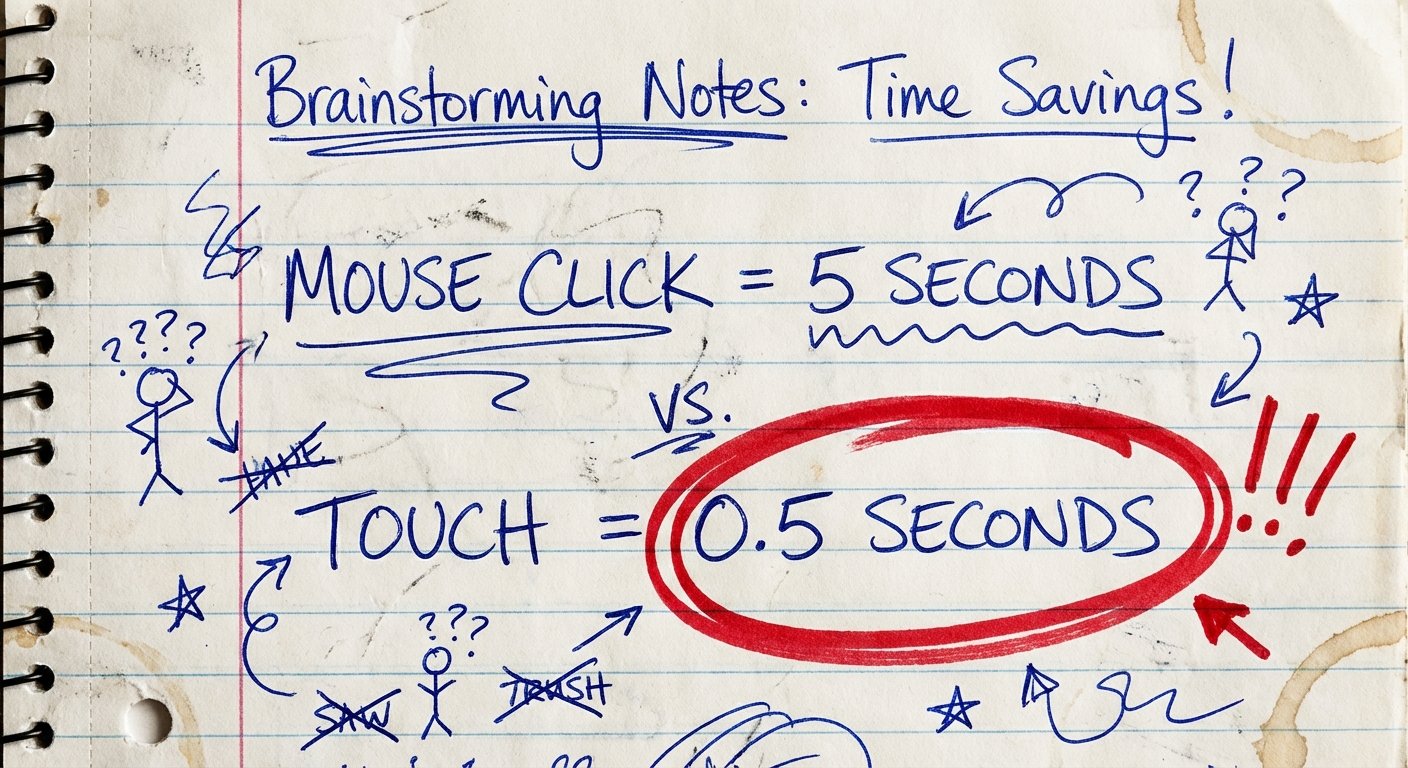
The Math: Why “Cheap” Monitors Are Expensive
Let’s do the math.
You buy a portable monitor to increase productivity while traveling or working remotely. You want a second screen to reference data, sign documents, or manage a dashboard.
Scenario A: The Non-Touch Monitor ($100)
You need to zoom in on a chart or sign a contract. You have to locate your cursor on the main screen, drag it over to the portable screen, find the scroll bar, click, and drag. Or worse, you try to sign a PDF using a trackpad. It looks like a toddler signed it. You look unprofessional.
Scenario B: The Touchscreen Monitor ($150)
You reach out. You pinch to zoom. You tap the button. You sign with your finger or a stylus. It takes 2 seconds.
The difference is maybe 10 seconds per interaction.
“But Alex, it’s only 10 seconds.”
If you interact with that screen 100 times a day, that is 1,000 seconds. That is 16 minutes a day. That is over an hour a week. That is 50 hours a year.
If your time is worth $50 an hour, you just saved $2,500 worth of time by spending $50 once.
That is a 50x return on investment.
If you don’t buy the touchscreen, you aren’t “saving” $50. You are paying $2,500 in lost time to keep $50 in your pocket.
That is how you stay poor.

Who Actually Needs This? (The Filter)
Not everyone needs a touchscreen. If you buy tools you don’t use, you’re just lighting money on fire.
Here is the filter. If you fall into these categories, the touchscreen is mandatory.
1. The Day Trader / Data Analyst
You have charts. You need to expand timeframes instantly. Mouse scrolling is imprecise. Reaching out and pinching the timeline on a candlestick chart gives you immediate control. Speed is money here.
2. The “Deal Closer”
You sit across from clients. You show them a proposal. If you have to spin your laptop around, you look clumsy. If you hand them a slim slate and say “swipe through this,” you look high-status. You look prepared. Plus, digital signatures. Letting a client sign on glass is infinitely better than “I’ll email you the DocuSign later.” Close the deal now.
3. The Creative / Editor
Scrubbing timelines in Premiere Pro or moving faders in a DAW (Digital Audio Workstation). Touching the fader is faster than clicking the fader. It creates a physical connection to the work.
Who Should NOT Buy This?
- Gamers: Most portable touchscreens have slower response times. You don’t need touch. You need refresh rate. Buy a high-refresh non-touch panel.
- Coders (Strictly Text): If your hands never leave the keyboard, the screen is just a readout. Touch adds glare. Save the $50.
- Mac Users (With a Warning): Apple hates touchscreens on macOS. To get these monitors to work with a Mac, you often need 3rd party drivers (like Touch-Base). It works, but it adds friction. If you aren’t willing to troubleshoot drivers, skip it.
The Hardware Reality Check
Before we get to the specific models, you need to understand the specs. Manufacturers lie. They use buzzwords to hide garbage components.
Brightness (Nits)
Most portable monitors are dim. 250 nits is standard. 250 nits is useless if you are sitting near a window. You want 300 nits minimum. 400+ is ideal.
The “One Cable” Lie
They all claim “One Cable Solution” (USB-C). This only works if your laptop port outputs enough power. If you crank the brightness on the monitor to 100%, it will likely crash your laptop port or flicker. You almost always need to plug these monitors into external power for reliable performance. Expect to carry two cables.
Glass vs. Matte
Touchscreens are usually glossy glass. This looks premium but reflects everything. If you work outside or under harsh office lights, the glare will annoy you. This is the trade-off for the touch capability.
Top Recommendations: High ROI Monitors
I have filtered through the junk. There are hundreds of generic Chinese brands on Amazon with random names like “Z-Edge” or “KYY.” Some are okay. Most are landfill.
Here are the ones that actually work.
1. The Reliable Workhorse: ViewSonic TD1655
This is for the professional who doesn’t have time for glitches. ViewSonic is a real brand. They have customer support. This monitor is built like a tank.
The Specs:
- Size: 15.6 Inch
- Panel: IPS 1080p
- Touch: 10-Point Projected Capacitive
- Kickstand: Built-in (Crucial)
The Win:
The built-in kickstand. Most cheap monitors use a flimsy “origami” cover case that collapses if you breathe on it wrong. The TD1655 has a rigid metal kickstand attached to the back. It stays where you put it. It also has two USB-C ports and a Mini-HDMI, so it works with everything.
The Trade-off:
It’s not the brightest screen on the market (around 250 nits). It’s functional, not cinematic. The bezel is a bit thick compared to newer models.
Price Estimate: $220 – $260
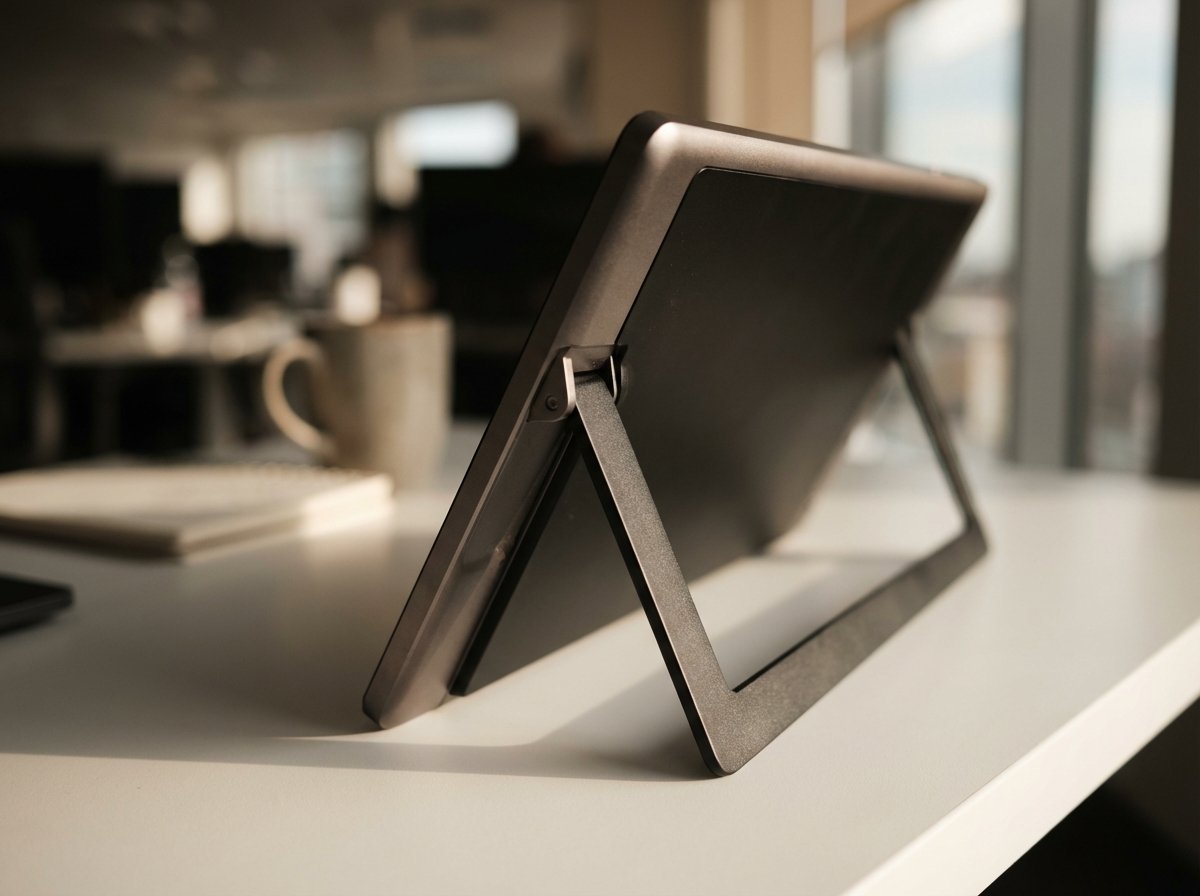
2. The “Status” Flex: Espresso Display 15 Touch
If you want the thinnest, sleekest monitor that looks like it was designed by Apple, this is it. It is made of aeronautical-grade aluminum. It is thinner than your phone.
The Specs:
- Size: 15.6 Inch
- Panel: 1080p (but looks sharper due to glossy glass)
- Build: Unibody Aluminum
- Software: Custom “EspressoFlow” software for Mac touch gestures
The Win:
Portability and Aesthetic. It slides into any bag. It weighs nothing. But the real win here is the Mac software. They actually developed software to make touch gestures work smoothly on macOS, which almost no other competitor does well.
The Trade-off:
The price is painful. You are paying for the design. Also, they sell the stand separately (and it’s expensive). You have to buy into their ecosystem.
Price Estimate: $400 – $500 (depending on bundle)
3. The Best Value: ASUS ZenScreen Ink MB14AHD
Asus dominates this space for a reason. They balance price and performance. The “Ink” model is specifically designed for people who sign things or annotate.
The Specs:
- Size: 14 Inch (More compact)
- Panel: IPS 1080p
- Stylus: Included (Microsoft Pen Protocol 2.0)
- Kickstand: Stepless integrated stand
The Win:
The stylus integration. It supports 4096 levels of pressure sensitivity. If you are an architect, a designer, or you mark up PDFs, this is the one. It’s not just a finger-touch screen; it’s a digitizer.
The Trade-off:
14 inches might feel small if you are used to a 16-inch laptop. You lose screen real estate. The menu system (OSD) on Asus monitors is annoying to navigate.
Price Estimate: $250 – $300
4. The Budget King: Arzopa G1 Game (Touch Version)
Okay, maybe you don’t want to spend $300. You want the cheapest option that isn’t complete trash. Arzopa is the king of the “Amazon Brands.”
Note: Make sure you select the specific Touch model in the listing, usually labeled S1 Table or G1 Touch.
The Specs:
- Size: 15.6 Inch
- Panel: IPS 1080p
- Refresh: Usually 60Hz for touch models
The Win:
The price. It usually dips below $140. For that price, getting a functional screen that accepts touch input is a steal. It’s light, it works, and if you drop it, you won’t cry.
The Trade-off:
Color accuracy is mediocre. Do not use this for color-grading photos. The brightness is low (often struggles in daylight). The build quality feels like plastic because it is plastic.
Price Estimate: $110 – $150
The Hidden Costs of “Going Cheap”
I need to warn you about the sub-$100 market.
If you see a touchscreen monitor for $89, run.
Here is what happens:
- Ghost Touches: The digitizer is low quality. It will register clicks you didn’t make. Windows will start opening and closing by themselves.
- Input Lag: You drag your finger, and the cursor follows half a second later. This breaks the “flow” state. It increases friction.
- Port Failure: The USB-C ports on cheap units are soldered poorly. After 50 plug-ins, the port gets loose. The connection drops. Now you have a paperweight.
Buying cheap is expensive. Buying quality is cheap.
The Setup: How to Actually Use It
Buying the monitor doesn’t solve your problem. Integrating it into your workflow solves the problem.
1. The “Vertical Stack”
Most people put the portable monitor to the left or right. This is wrong.
Put it below your main laptop screen (if you have a stand) or prop it up right next to your keyboard.
Why? Because looking left and right strains your neck and breaks focus. Looking down is natural. It mimics looking at a notepad. Use the touchscreen for your “control center”—Slack, Spotify, Email, Calendar. Keep your main screen for Deep Work.
2. Cable Management
Get a right-angle USB-C cable. The straight cables stick out 2 inches from the side of the monitor. They get snagged on coffee cups. They get bent in your bag. A right-angle cable keeps the setup tight and professional.

Final Verdict: Is it Worth the $50?
Let’s wrap this up.
If you value your time at $0/hour, do not buy a touchscreen monitor. Save the $50. Go buy a pizza.
If you value your time at anything over $20/hour, the math is undeniable.
The ability to manipulate data directly, sign documents instantly, and navigate interfaces with zero friction pays for the device in the first month.
My Recommendation:
- Buy the ViewSonic TD1655 if you want a tool that will last 5 years.
- Buy the Asus ZenScreen Ink if you use a pen.
- Buy the Espresso if image is part of your sales process.
Stop thinking about the cost of the tool. Start thinking about the cost of not having the tool.
Make the investment. Get to work.