
The Cost of Being Cluttered
You are losing money right now.
You probably don’t realize it. You think you are “working remotely” or “being productive.” But if I looked at your backpack or your desk, I would see the problem immediately.
It’s the friction.
You sit down at a coffee shop. You pull out your laptop. Then you pull out a power brick. Then a thick cable. Then a portable monitor. Then another power cable for the monitor. Then a tiny HDMI cable. You spend five minutes untangling spaghetti before you even open an email.
You look like an amateur.
Amateurs optimize for “cheap.” Pros optimize for speed. Time is the only asset you can’t buy more of. If setup takes you 10 minutes a day, that’s 60 hours a year. If your time is worth $100 an hour, you just flushed $6,000 down the toilet because you didn’t want to spend $200 on the right gear.
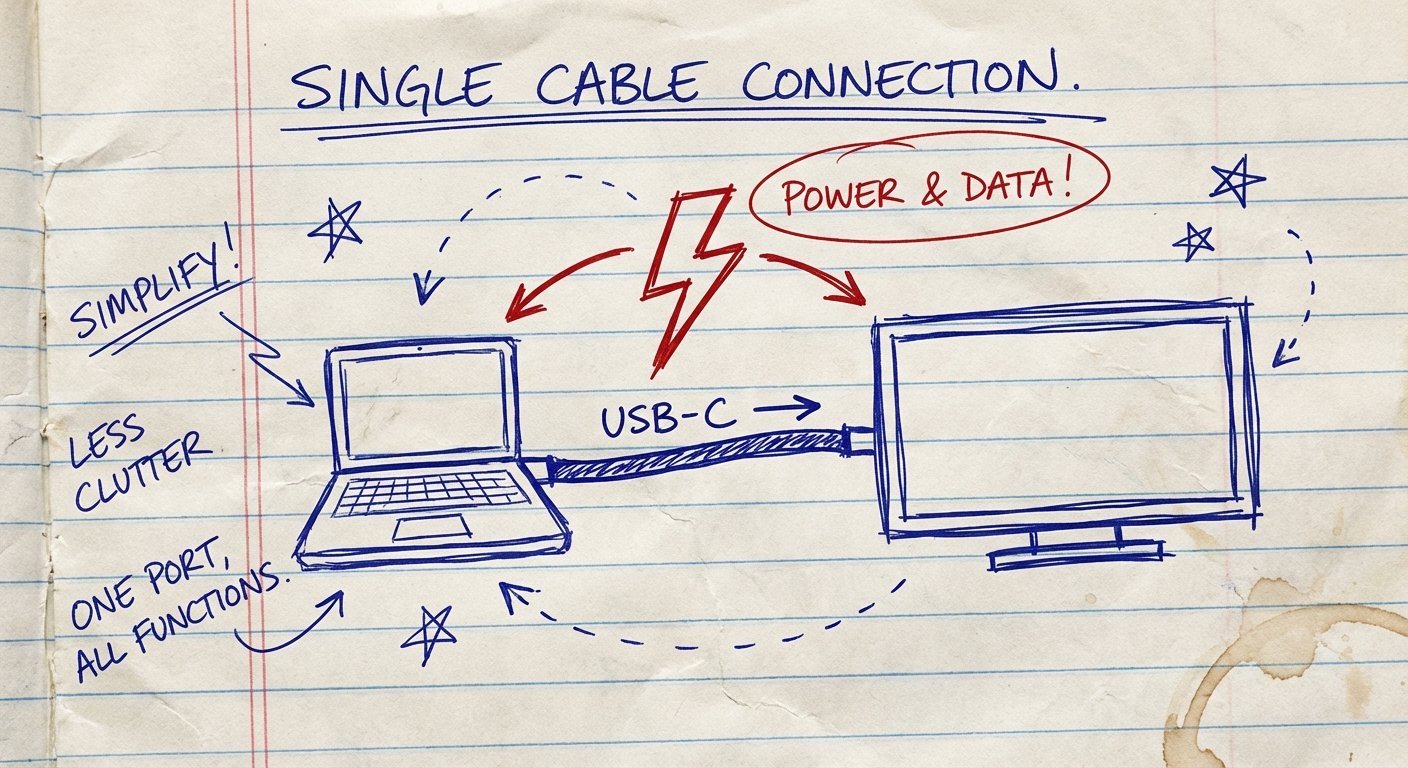
The solution is the One Cable Dream.
One cable connects your laptop to your screen. That same cable sends video. That same cable sends power. No bricks. No dongles. No friction.
This is the breakdown of USB-C Power Delivery (PD) and the portable screens that actually yield a return on investment.
The Math of Efficiency
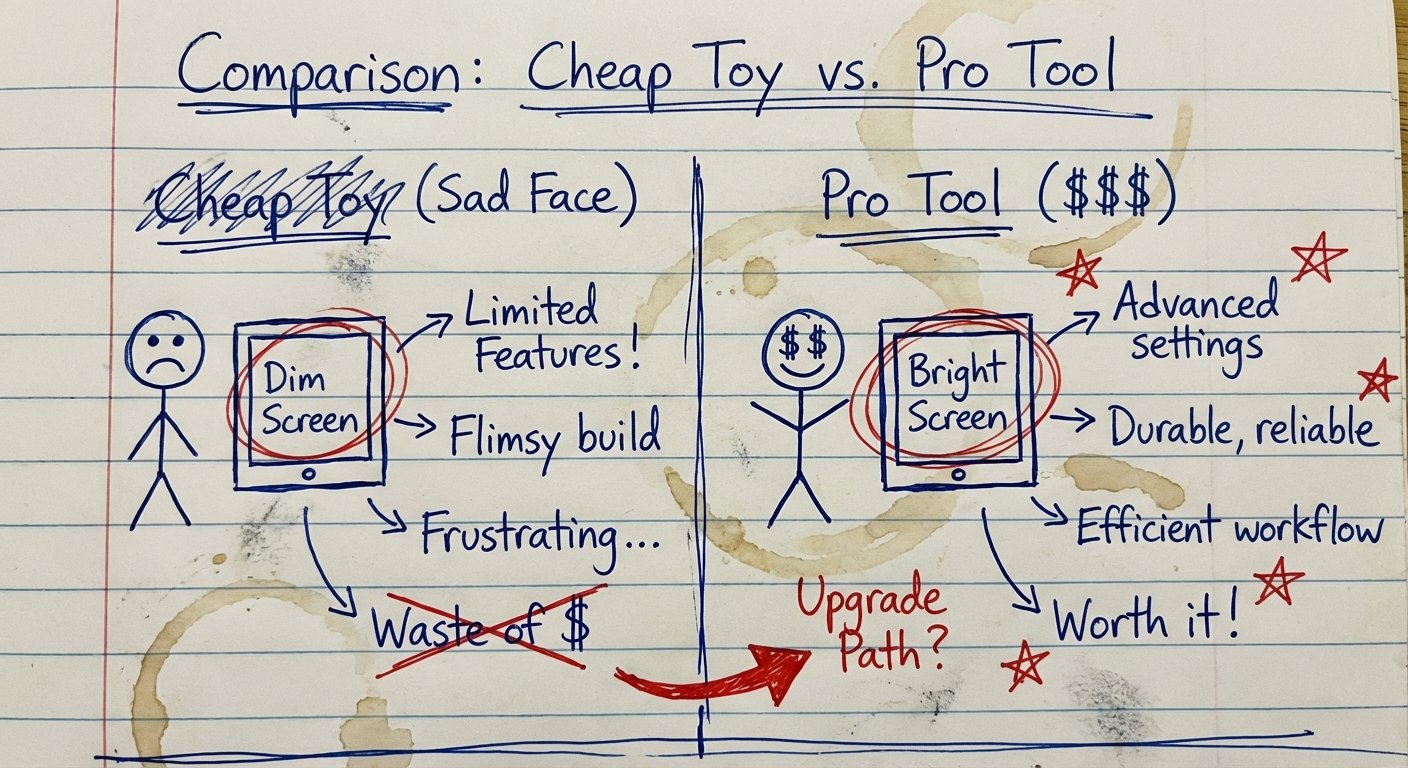
Most people buy portable monitors based on price. They go to Amazon, sort by “Price: Low to High,” and buy a $90 piece of plastic trash.
Then they realize the screen is dim (200 nits). The colors look washed out (45% NTSC). And worst of all, it requires two cables to work because the cheap port can’t handle power and data simultaneously.
Here is the logic you need to apply.
The Protocol: USB-C is Not a Standard, It’s a Connector
This confuses everyone. The shape of the plug (USB-C) tells you nothing about what it does. It’s like a mailbox. Just because you have a mailbox doesn’t mean you have mail.
For the One Cable Dream to work, your laptop and your monitor need to support DP Alt Mode (DisplayPort Alternate Mode) and PD (Power Delivery).
- Data Only: Cheap cables/ports. Won’t work.
- Charging Only: Cheap cables. Won’t work.
- Thunderbolt 3 / 4: The Gold Standard. Does everything. Huge bandwidth.
- USB 3.1 / 3.2 / 4.0 (Gen 2): Usually works.
If you plug a monitor into a data-only USB-C port, the screen stays black. You wasted your money.
The Setup: Pass-Through Charging
This is the feature that separates the toys from the tools.
Pass-Through Charging means you plug your wall charger into the monitor, and the monitor passes power through the USB-C cable into your laptop. Or vice versa.
Scenario A (The Battery Drainer):
Laptop (Battery) -> USB-C Cable -> Monitor.
Result: One cable. Clean setup. But the monitor eats your laptop battery in 2 hours.
Scenario B (The Infinite Loop):
Wall Charger -> Monitor -> USB-C Cable -> Laptop.
Result: One cable goes to your laptop. The laptop charges. The monitor works. You never run out of juice.
To do Scenario B, the monitor needs to accept high wattage (usually 65W or 100W input) and output enough to keep your laptop alive (usually 45W or 60W).

Market Analysis: The Trash vs. The Treasure
I have looked at the specs. I have ignored the marketing fluff. Most monitors are garbage. They are dim, fragile, and have terrible viewing angles.
If you are a coder, you need vertical real estate (16:10 aspect ratio). If you are a designer, you need color accuracy (100% sRGB or DCI-P3). If you just want to look at spreadsheets, you still need brightness (300+ nits) so you can work near a window without squinting.
Here are the only three categories worth your money.
Category 1: The “Bang For Buck” (Entry Level)
You want to spend under $150. You don’t care about perfect color accuracy. You just need a second screen to hold Slack or a reference document while you work on the main screen.
Arzopa G1 Game 15.6″ 144Hz
This is the volume leader for a reason. It is cheap, lightweight, and high refresh rate.
The Specs:
- Resolution: 1080p (FHD)
- Refresh Rate: 144Hz (Smooth scrolling)
- Panel: IPS
- Weight: ~1.3 lbs
The Win: The price-to-utility ratio is absurdly high. It’s light. It works with one cable. 144Hz makes your mouse movement feel premium even if the build quality isn’t.
The Trade-off: The brightness is mediocre (usually around 300 nits). The build feels plasticky. The kickstand is often magnetic and can flop over if you look at it wrong. Do not use this for color grading video.
Price: $110 – $140
Category 2: The “Productivity Beast” (Mid-Range)
You value pixels. You hate 1080p because the text looks jagged. You want 2K (1440p) or 4K so you can fit more rows on your Excel sheet.
UPERFECT 2K 120Hz Portable Monitor (16-inch)
This brand dominates the mid-range. They use good panels inside generic housing.
The Specs:
- Resolution: 2560×1600 (2K QHD)
- Aspect Ratio: 16:10 (Taller screen = more code/text visible)
- Brightness: ~500 nits (This is huge for working in daylight)
- Colors: 100% sRGB
The Win: 16:10 aspect ratio is the productivity cheat code. You scroll less. The 500 nits brightness means you can actually use it in a coffee shop with windows. The text is crisp.
The Trade-off: Audio quality is terrible (tinny speakers). The menu system (OSD) is clunky and annoying to navigate. The brand name is generic.
Price: $170 – $230
Category 3: The “No Compromise” (High End)
You are a creative professional. Or you just have money and hate looking at pixels. You want OLED. You want perfect blacks. You want the screen to look better than your actual laptop screen.
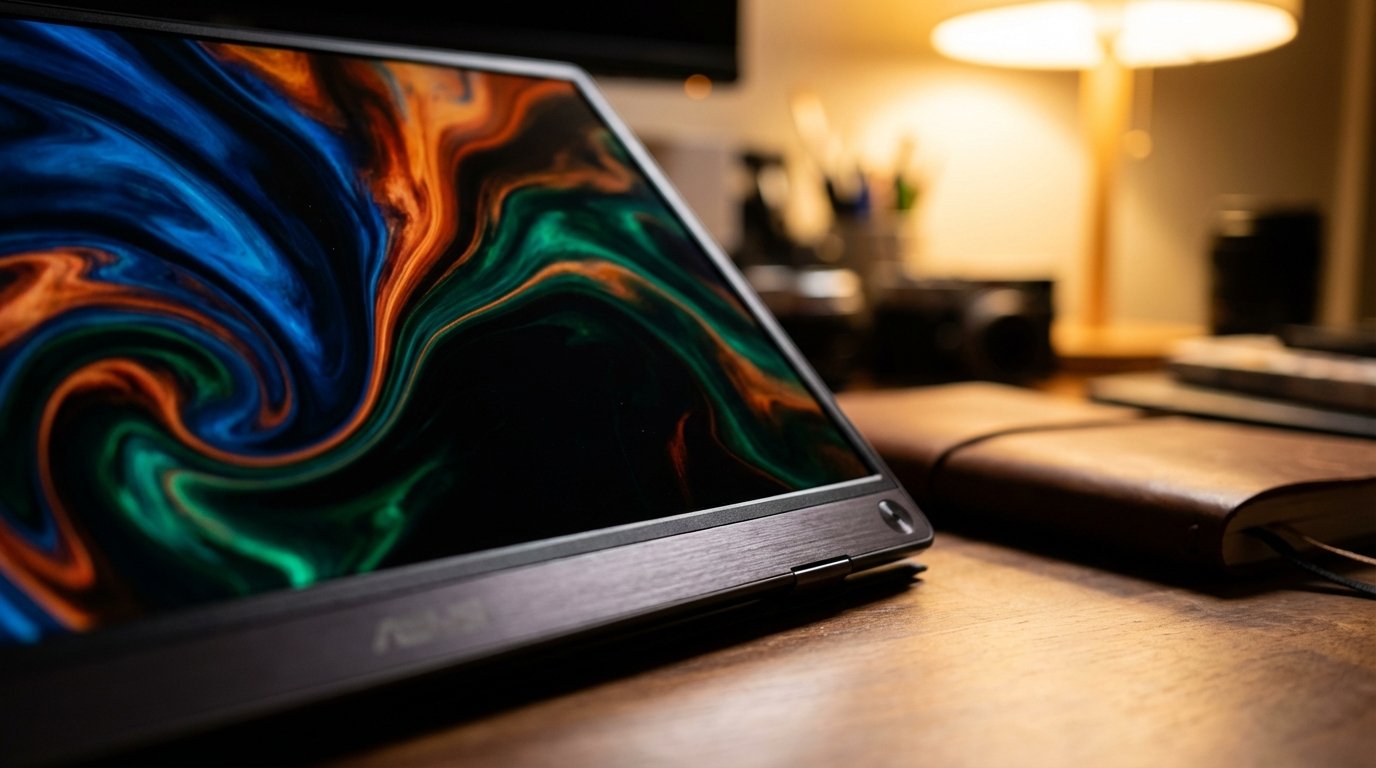
ASUS ZenScreen OLED MQ13AH / MQ16AH
ASUS is a real hardware company. They aren’t slapping a logo on a generic factory unit. This is engineered.
The Specs:
- Panel: OLED (Organic Light Emitting Diode)
- Contrast Ratio: 100,000:1 (Perfect blacks)
- Color: 100% DCI-P3 (Cinema grade)
- Response Time: 1ms
The Win: It is beautiful. If you show a client a design on this, it sells itself. It is incredibly thin. The colors pop in a way LCD panels simply cannot match.
The Trade-off: It is expensive. OLED screens can suffer from “burn-in” if you leave static toolbars on them for 10 hours a day every day for years. Also, glossy screens reflect light—if you are in a bright room, you will see your own face.
Price: $300 – $400
The Accessory That Breaks The System
You bought the monitor. You have the laptop. But it’s flickering. It’s disconnecting. Why?
You are using the wrong cable.
The white charging cable that came with your MacBook? That is a USB 2.0 cable. It carries power, but data moves at the speed of a snail (480Mbps). It cannot carry video.
You need a cable rated for USB 3.2 Gen 2 or USB 4 or Thunderbolt 3/4.
It needs to support:
- 100W Power Delivery (PD)
- 4K Video Output (DisplayPort Alt Mode)
- 10Gbps or 40Gbps Data Transfer
If the cable is thin and flimsy, throw it away. You need a thick, shielded cable. If you skimp here, the $300 monitor becomes a paperweight.
Anker USB-C to USB-C Thunderbolt 4 Cable
Don’t guess. Buy certified.
The Win: It works every time. Supports 100W charging and 8K display. Future proof.
The Trade-off: It’s shorter (usually 2.3 ft or 0.7m). High bandwidth cables lose signal strength over long distances. You have to keep the monitor close.
Price: $30 – $40
The ROI Conclusion
Let’s do the final math.
You buy a UPERFECT 2K monitor ($200) and a proper Anker cable ($30). Total investment: $230.
You use this setup to keep your email open on the left and your work on the right. You stop Alt-Tabbing 50 times an hour. You save 15 minutes of focus time per day.
15 minutes x 5 days x 50 weeks = 62.5 hours saved per year.
Even if you value your time at minimum wage ($15/hr), that is $937.50 of value created.
You spent $230 to make $937. That is a 4x Return on Investment in year one.
If you value your time at $100/hr, that is $6,250 of value. That is a 27x Return on Investment.
Stop overthinking it. Stop trying to save $20 on a cheaper screen. Buy the gear that works. Set it up once. Get to work.
Simplicity scales. Complexity fails.