The $20 Bottleneck Costing You Thousands
You buy a $2,000 MacBook. You buy a $600 4K monitor. You buy a $1,000 ergonomic chair.
Then you open the monitor box. You see a black plastic cable. It is 3 feet long. It feels cheap. It smells like a factory in Shenzhen.
You plug it in.
You just wasted your entire investment.
Most people treat cables like garbage. They think a cable is a cable. This is wrong. This is poor thinking.
The cable that comes in the box is the “minimum viable product.” The manufacturer includes it so you can turn the screen on. That is it. They do not care about your refresh rate. They do not care about your data transfer speeds. They definitely do not care about your desk ergonomics.
They care about saving $0.40 per unit.
When you use that free cable, you accept their constraints. You tether your laptop to a specific 3-foot radius on your desk. You limit your bandwidth. You introduce friction.
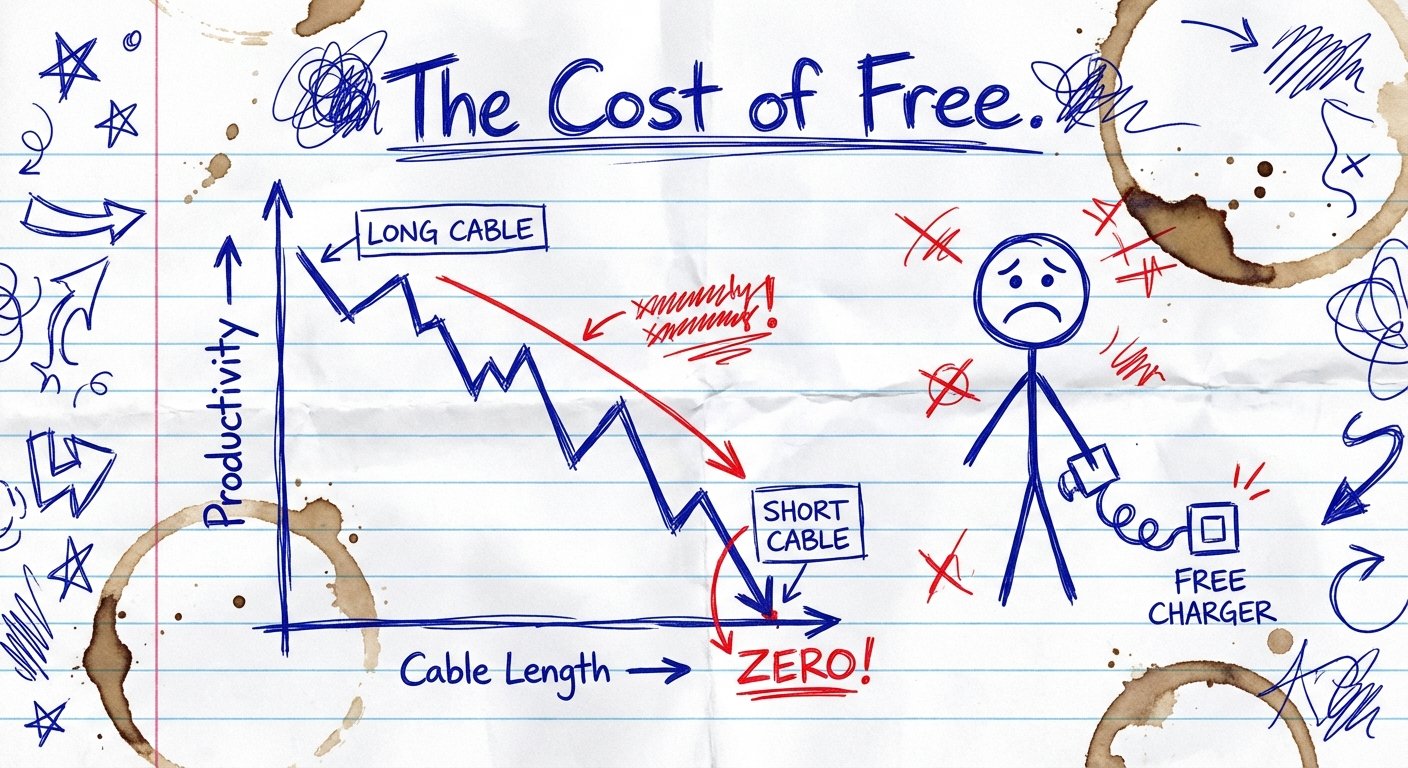
Friction kills flow. Flow creates money. Therefore, the free cable kills money.
The Math of the 3-Foot Leash
Let’s look at the ROI. I like math because it doesn’t care about your feelings.
The standard monitor cable is usually 1 meter (3.3 feet). This forces your laptop to sit right next to the monitor.
This creates two problems:
- Physical Constraint: You cannot center your keyboard. You cannot move the laptop if a client comes in. You are physically cramped.
- Visual Constraint: Standard cables often cap out at 30Hz for 4K. Your mouse lags. It feels slow.
Let’s calculate the cost of “Micro-Friction.”
Every time you struggle to move your mouse because of the cable tension, or your screen flickers, or you have to plug in a separate charger because the video cable doesn’t carry power, you lose 5 seconds.
Assume this happens 20 times a day. That is conservative.
- 20 interruptions x 5 seconds = 100 seconds/day.
- Add the mental switching cost (re-focusing takes average 23 minutes, but let’s be generous and say 2 minutes).
- 20 x 2 minutes = 40 minutes of lost focus per day.
40 minutes a day. 5 days a week. 50 weeks a year.
That is 166 hours a year.
If your time is worth $50 an hour, you just flushed $8,300 down the toilet.
If your time is worth $500 an hour, you lost $83,000.
All because you didn’t want to spend $40 on a cable.

Bandwidth: The Hidden Productivity Killer
The physical length is the obvious problem. The hidden problem is bandwidth.
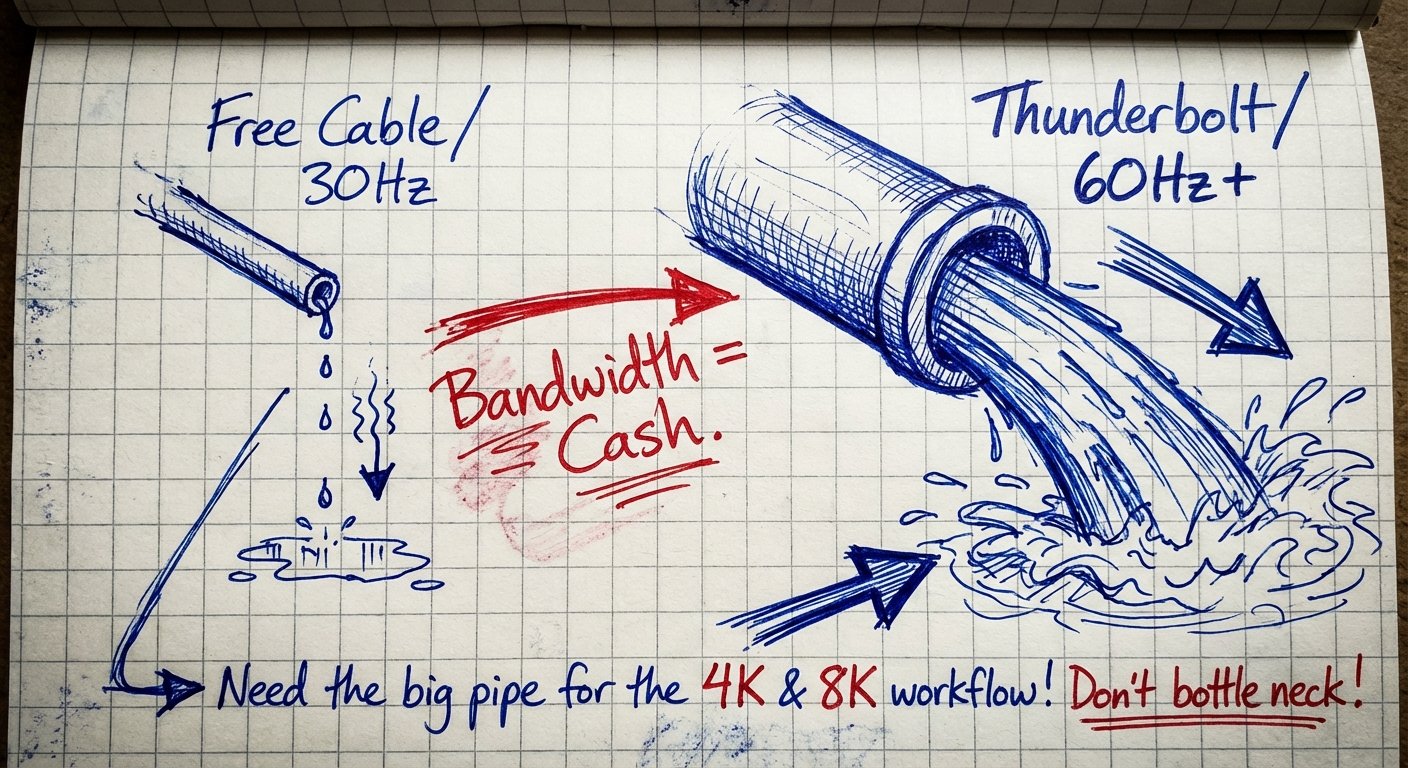
Cheap cables have low throughput. Think of it like a pipe. You have a firehose of data (4K video, internet, hard drive data) trying to fit through a drinking straw.
Here is what happens when you use the “Freebie” cable:
- Refresh Rate Caps: You get 30Hz instead of 60Hz or 144Hz. The mouse cursor looks like it’s trailing ghosts. It feels sluggish. It creates subconscious eye strain.
- No Power Delivery: You have to plug in a charger AND a video cable. Two cables. More clutter. More friction.
- Data Speed Throttling: If your monitor has a USB hub, your transfer speeds drop to USB 2.0 levels (480Mbps) instead of USB 3.0 or Thunderbolt (40Gbps).
You paid for the speed. You are not getting the speed.
The Solution: The One-Cable Setup
You need a setup that allows you to sit down, plug in one cable, and have everything work.
- Power (Charging).
- Video (4K/6K at 60Hz+).
- Data (External drives, webcam, mic).
To do this, you need to buy a cable that costs more than a sandwich. You need to look for specific certifications. Do not look at “Gold Plated connectors.” That is marketing fluff. Look for protocols.
Here are the only three categories of cables you should consider buying.
1. The “Money is No Object” Option: Apple Thunderbolt 4 Pro Cable (1.8m or 3m)
This is for the person who wants zero doubt. If you are billing $1,000+ a day, just buy this and move on.
Most long cables lose speed. Physics is the enemy. Signal degrades over distance. Apple engineered an “Active” cable. It has chips inside the connectors that boost the signal. This allows it to maintain 40Gbps speed over a 3-meter distance.
It is braided. It coils perfectly. It does not tangle.
Price Range: $129 – $159
The Win: It is the highest spec cable on the market. 40Gbps data transfer. 100W charging. Works with everything. The 3-meter length allows you to route the cable under your desk, completely hidden.
The Trade-off: It is absurdly expensive. You are paying the “Apple Tax.” If you don’t need 3 meters of length, you are lighting money on fire.
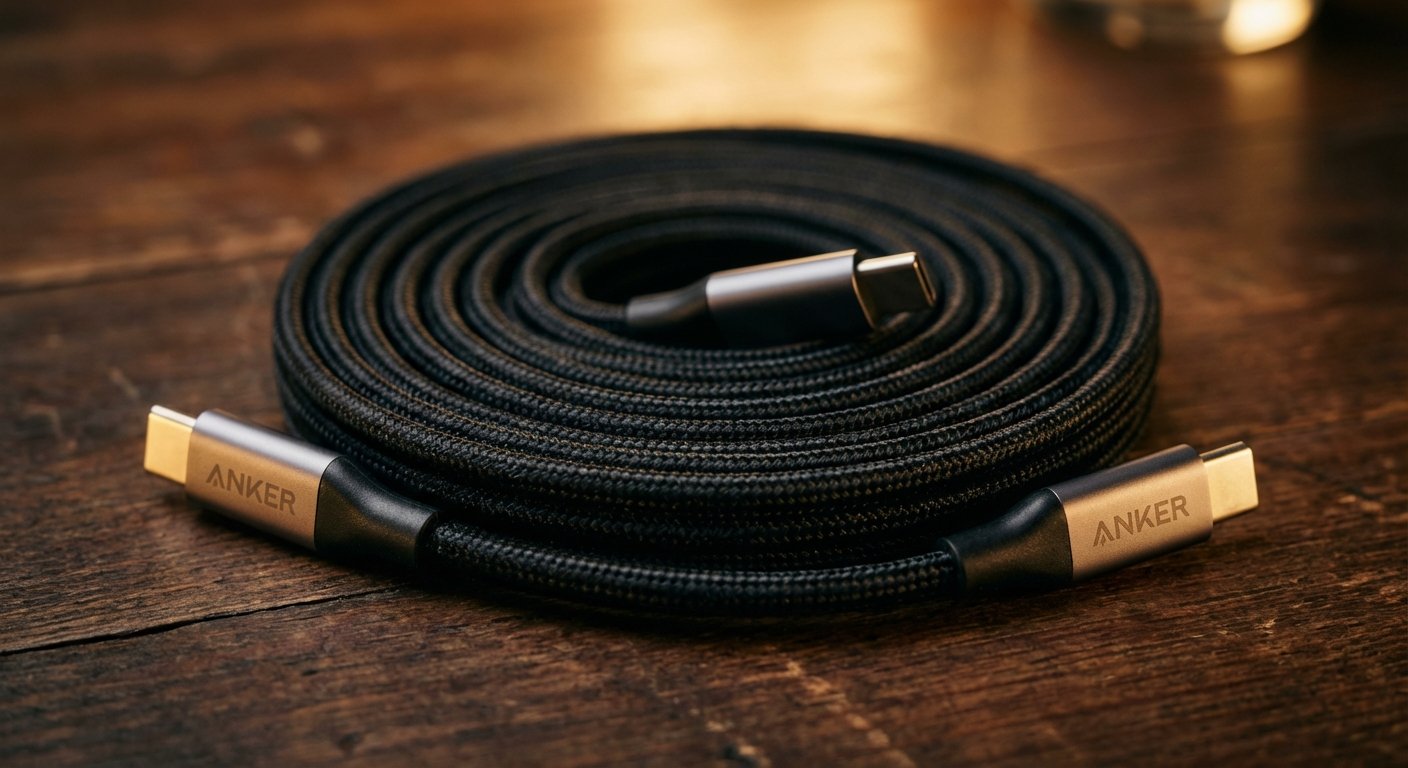
2. The “Smart Money” Option: Anker 515 USB 4 Cable
For 95% of people, this is the correct choice. Anker has eaten the market because they make stuff that works at a price that makes sense.
This uses the USB 4 standard. It is compatible with Thunderbolt 3 and 4 devices. It handles 40Gbps. It handles 8K display output. It supports 240W charging (future-proof).
The length is usually 3.3ft or 6ft. Get the 6ft (1.8m) version. The 3ft version puts you back in the same trap you started in.
Price Range: $30 – $40
The Win: You get 99% of the performance of the Apple cable for 25% of the price. The build quality is solid. It solves the bandwidth and power delivery problem instantly.
The Trade-off: It is thicker and stiffer than standard cables. It might be harder to route around tight corners on a desk arm.
3. The “Long Haul” Option: Cable Matters Active USB-C Cable
Sometimes your computer is on the floor. Sometimes your standing desk goes up high. A 6-foot cable isn’t enough.
Standard USB-C cables stop working well after 6 feet. They lose speed. They lose video quality. To go longer, you need an “Active” cable with a signal repeater.
Cable Matters makes a specific cable for this. It is designed for bandwidth over distance.
Price Range: $50 – $70
The Win: You can place your loud, hot computer far away from your microphone and your face. This reduces noise. This clears desk space. It supports 4K video flawlessly over 10 feet.
The Trade-off: Active cables are directional. One end must go to the PC, one to the monitor. If you plug it in backward, it won’t work. It’s annoying if you move around a lot.
Implementation: How to actually set this up
Buying the cable is step one. Step two is installation. Do not just drape it across your coffee cup.
1. Get the Length Right
Measure the distance from your laptop port to the monitor port. Now add 50%. This is the “Slack Rule.”
If the distance is 4 feet, buy a 6-foot cable. If you buy a 4-foot cable, you will create tension on the port. Tension breaks ports. Logic board repairs cost $600. Cables cost $40. Do the math.
2. The “L” Route
Route the cable in an “L” shape. Down the monitor arm, then across the back of the desk. Never diagonal. Diagonal cuts across your workspace. It blocks your notebook. It blocks your hands.
3. Use Velcro, Not Zip Ties
Zip ties are permanent. Your setup will change. Use velcro straps. If you zip tie your expensive active cable too tight, you can crush the shielding and ruin the data speed.
The Philosophy of Constraints
This isn’t really about cables. It is about removing constraints.
If you tolerate a bad physical environment, you are telling yourself that your work doesn’t matter. You are accepting a handicap.
High performers look for leverage. Leverage is getting more output for the same input.
- Low Leverage: Fighting a short cable, squinting at a 30Hz screen, adjusting your posture to fit the desk.
- High Leverage: Spending $40 once. Plugging in. Working for 5 years without thinking about it.
The cable is the cheapest leverage you can buy.

Summary
Stop using the trash that comes in the box.
The manufacturers include it to check a box on a spec sheet. They do not use it themselves.
You have a $5,000 desk setup being choked by a $2 wire. It makes zero sense.
1. Buy a 6ft+ USB 4 or Thunderbolt cable.
2. Route it properly so it is invisible.
3. Get back to work.
Fix the input. Maximize the output.