
The Economy Seat Math: Why Your Mouse Choice Costs You Money
Most people treat flights as “downtime.”
They watch movies. They sleep. They eat the bad pretzels.
This is a mistake.
If you are an entrepreneur or a high-performer, a flight is the only time you have zero distractions. No slack. No email. No employees knocking on your door.
It is 3 to 10 hours of pure deep work.
If you bill $200 an hour, a 5-hour flight is worth $1,000.
But you can’t generate that $1,000 if you are fighting your equipment.
Here is the scenario. You are in seat 24B. The person in front of you reclines. The person to your right is taking up the armrest.
You open your laptop.
You have a tiny plastic tray. It is flimsy. It is small.
You try to use the trackpad. Your wrist hurts after 15 minutes. Your productivity drops by 40%. You give up. You watch the movie.
You just lost $1,000.
The solution is an external mouse. But not just any mouse.
You have two options for ergonomics: **The Vertical Mouse** or **The Trackball.**
One of these works. The other is a trap.
I am going to break down the physics, the constraints, and the ROI of both.
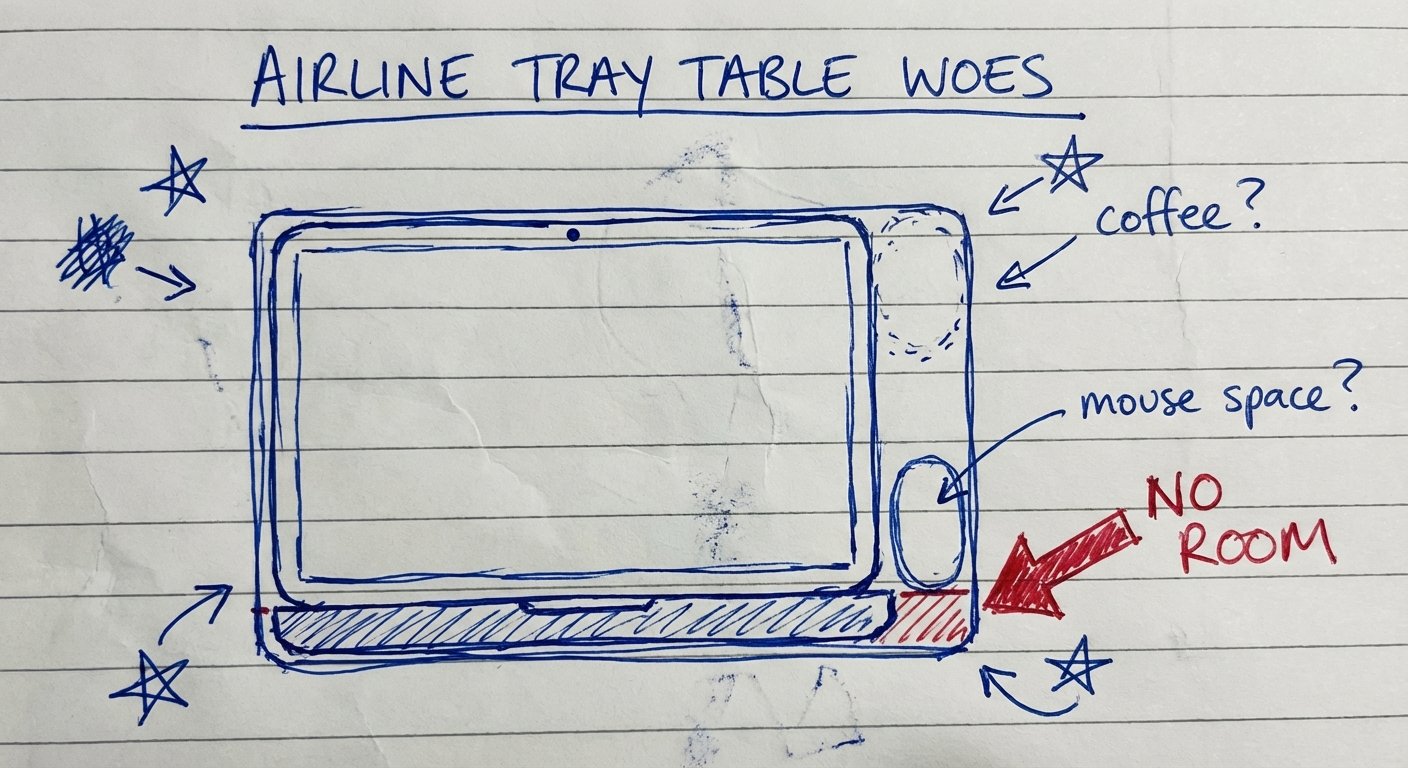
The Constraint: The Physics of the Tray Table
Let’s look at the numbers.
The average economy airline tray table is roughly 16.5 inches wide by 10.5 inches deep.
If you have a 13-inch or 14-inch MacBook Pro, the laptop itself is about 8.5 to 9 inches deep.
Do the math.
10.5 inches (Tray) – 9 inches (Laptop) = 1.5 inches of remaining depth.
You have no room.
If you put the mouse next to the laptop, you have about 3 to 4 inches of width before you hit the edge of the tray or your neighbor’s elbow.
This is the constraint. The constraint dictates the solution.
Most people buy gear based on how it looks on a spacious desk in a YouTube video. They don’t buy for the environment they actually work in.
Option A: The Vertical Mouse (The Trap)
A vertical mouse is great. I use one at my desk.
It keeps your forearm in a neutral “handshake” position. It stops the two bones in your arm from crossing over. It reduces strain.
But here is the problem with vertical mice on planes: **Optical Sensors.**
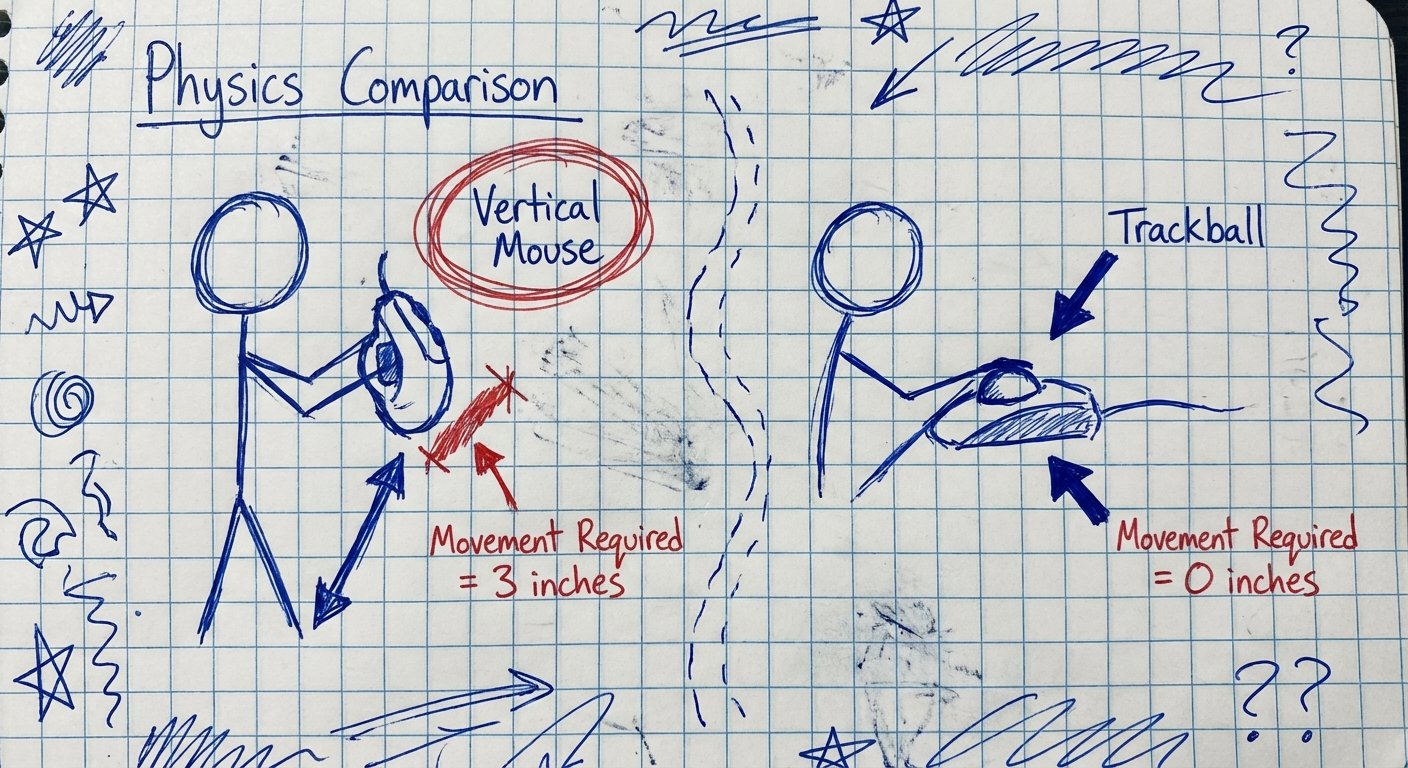
To move the cursor, you must move the device.
To move the cursor across a dual-screen setup (or even a single high-res laptop screen), you need to slide the mouse roughly 2 to 3 inches physically.
On a tray table, you do not have 3 inches.
If you try to use a vertical mouse like the Logitech Lift or the MX Vertical on a plane, three things happen:
1. **The “Lift and Reset”:** You run out of mousepad. You have to lift the mouse and put it back to the center. You do this 500 times an hour. It is annoying. It kills flow.
2. **The Drift:** You slide the mouse too far right. It falls off the edge.
3. **The Elbow Wars:** To move the mouse, your elbow must move. When your elbow moves, it hits the person next to you.
The vertical mouse solves the wrist pain problem. But it fails the space constraint problem.
If you can’t move the mouse, you can’t work.
However, if you are stubborn and insist on a vertical mouse because you refuse to learn a trackball, there is only one option small enough to even consider.
The Only Vertical Contender: Logitech Lift
If you have small hands or just hate trackballs, this is the only one compact enough to try. It is quieter than the MX Vertical and has a smaller footprint.
* **Price:** $65 – $75
* **Weight:** 125g
* **Why it fails (usually):** Still requires surface movement.

Option B: The Trackball (The Solution)
The trackball is the ugly duckling of computer peripherals.
It looks like technology from 1995. It is bulky. People make fun of it.
But for high-performance travel, it is the only logical choice.
Here is the physics: **The device does not move.**
You move the cursor by spinning the ball with your thumb (or fingers). The base of the mouse stays stationary.
This changes everything.
* **Zero Footprint:** You can place it on the 2-inch sliver of space next to your laptop. It works.
* **The “Leg” Trick:** If the tray is full of food or drinks, you can put the trackball on your leg. It works perfectly. You cannot do this with an optical mouse.
* **The Armrest:** You can balance it on the armrest.
You are removing the variable of “surface area” from the equation.
When you remove constraints, you increase output.
People complain about the learning curve. They say, “I can’t aim with my thumb.”
This is lazy thinking.
It takes approximately 4 hours of focused work to retrain your brain to use a thumb trackball.
Is 4 hours of awkwardness worth a lifetime of being able to work from anywhere? Yes.
If you are editing video, coding, or managing spreadsheets in tight quarters, the trackball wins. It is not a preference. It is geometry.
The Best Trackball Mice for Travel
I have tested all of them. Most are cheap plastic garbage. You want heavy, solid gear that lasts.
Here are the winners.
1. The King: Logitech MX Ergo Plus
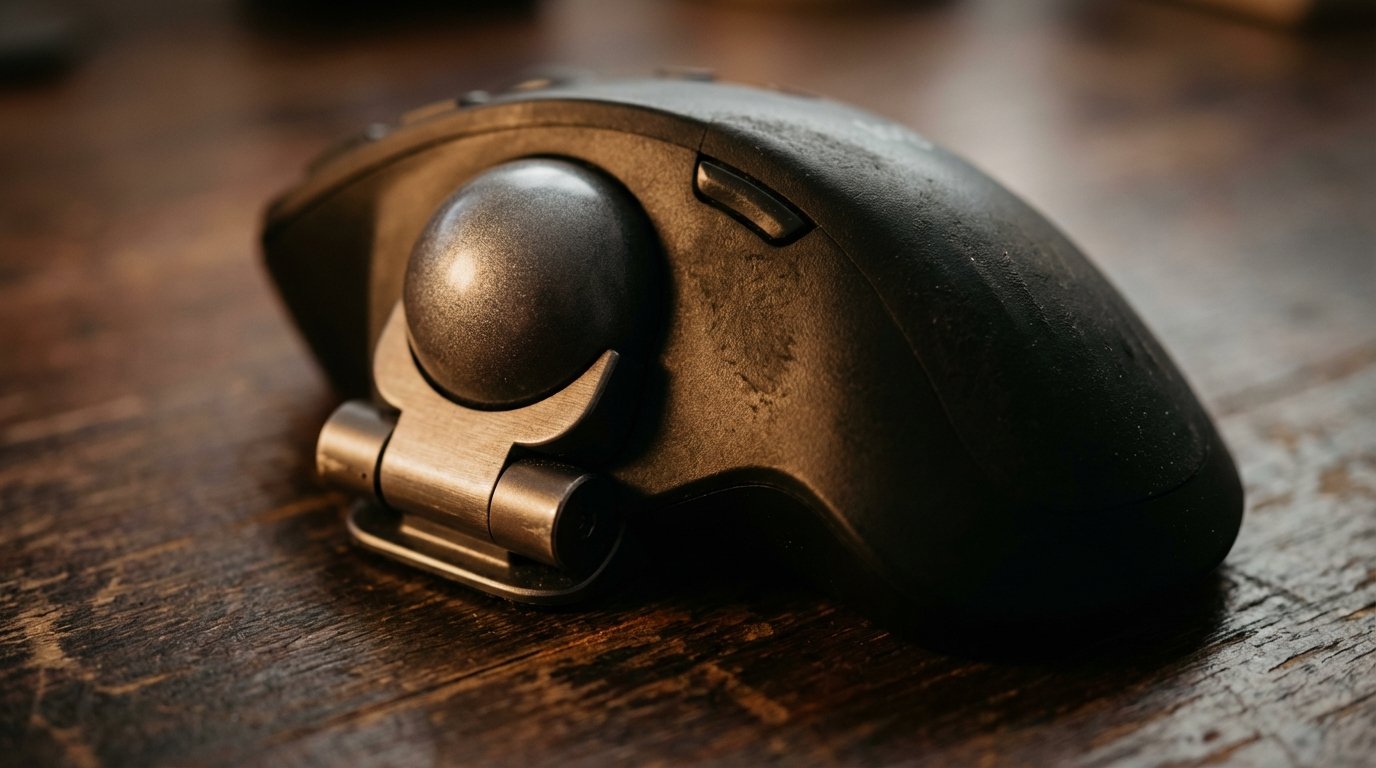
This is the gold standard. It has a magnetic metal plate base that allows you to tilt the angle of the trackball by 20 degrees. This gives you the ergonomic benefit of a vertical mouse *and* the stationary benefit of a trackball.
It is heavy. This is good. It doesn’t slide around when the plane hits turbulence.
It has a “precision mode” button near the ball. You press it, and the cursor slows down. This is crucial for precise clicking (like in Excel or Premiere Pro) when you are first learning to use your thumb.
* **Price:** $90 – $100
* **Battery:** Rechargeable (Micro-USB or USB-C depending on version). Lasts months.
* **Verdict:** Buy this one.
2. The Budget Pick: ProtoArc EM03
If you aren’t ready to drop $100 on a mouse type you haven’t used before, get this. It mimics the MX Ergo shape but feels cheaper. It has RGB lighting (turn that off to save battery).
It gets the job done. It proves the concept.
* **Price:** $40 – $50
* **Verdict:** Good entry level.
3. The Finger Option: Kensington Orbit Wireless
Some people hate using their thumb. They want to use their index and middle finger to move the ball.
The Kensington Orbit is ambidextrous. It has a scroll ring around the ball which is very satisfying to use. It is smaller than the MX Ergo.
However, it lacks the extra buttons (back/forward) that productivity users usually need.
* **Price:** $40 – $60
* **Verdict:** Good for lefties or finger-trackers.
The ROI Calculation
Let’s do the math on why this purchase is free.
Let’s say you buy the Logitech MX Ergo for $100.
You take 4 flights a year. That is 8 legs total.
Average working time per leg: 3 hours.
Total potential working hours: 24 hours.
**Scenario A: You use a trackpad.**
Your efficiency is 60% because of wrist fatigue and clumsiness.
You get 14.4 hours of real work done.
**Scenario B: You use a trackball.**
Your efficiency is 95% (almost equal to your desk).
You get 22.8 hours of real work done.
**The Delta:** 8.4 hours gained.
If your time is worth $50/hour: You gained $420.
Minus the $100 mouse cost = **$320 Net Profit.**
And that is just one year.
Stop stepping over dollars to pick up pennies. Buy the gear that lets you work.

Final Verdict
The debate is simple.
If you have unlimited desk space, get a Vertical Mouse. It is slightly better for your arm.
If you are on an airplane, a train, or a coffee shop with tiny tables, get the **Trackball**.
Specific recommendation: Get the **Logitech MX Ergo**.
1. It fits on the tray.
2. It doesn’t annoy your neighbor.
3. It pays for itself in one flight.
Don’t be the guy struggling with the trackpad. Be the guy getting ahead while everyone else is watching movies.